
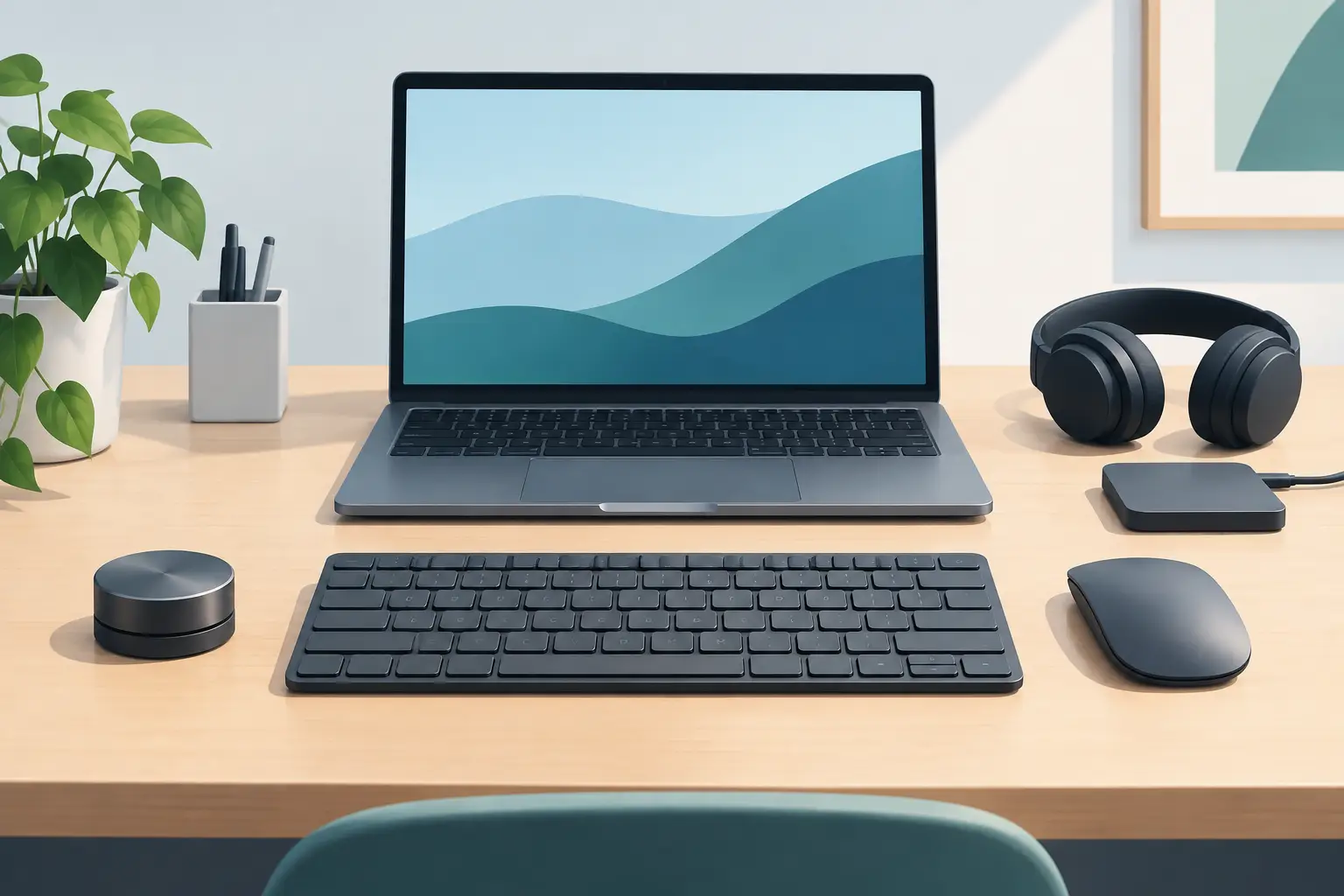
A crowded desk rarely fails all at once. It fails in small interruptions: a hand leaving the mouse for a macro pad, a cable catching a notebook, a control panel pushed behind a keyboard. The best compact desk peripherals solve those interruptions without turning your workspace into a showroom for more hardware.
For gamers, creators, editors, and developers, smaller is not the point by itself. Better placement is. The right peripheral keeps high-frequency actions close, clears visual noise, and preserves the hand positions that support long sessions. That is compact control: less reaching, less switching, more flow.
Best Compact Desk Peripherals Start With Frequency
Before buying anything, look at what you touch repeatedly during a session. Not once per day. Not once per project. Repeatedly.
A mouse and keyboard are obvious. But so are push-to-talk, undo, timeline cuts, brush-size changes, mute, play/pause, scene switching, screenshots, and folder navigation. These actions are where small delays accumulate. A compact peripheral earns its footprint when it reduces a movement you make hundreds of times.
That rule changes the buying process. Do not start with a list of products. Start with the command you want closer to your hand.
A video editor may need transport controls and a programmable dial. A competitive player may need fast access to communication, inventory, or utility actions. A developer may need a small set of build, search, terminal, and window-management shortcuts. The hardware can look similar, but the correct setup is different.
The Compact Desk Peripherals That Actually Matter
A low-profile keyboard
The keyboard still defines the center of the desk. A compact layout can create meaningful mouse room, especially for low-sensitivity gaming and wide cursor movements. Tenkeyless boards remove the number pad. Smaller layouts go further, but the trade-off is real: fewer dedicated keys often means more layers and key combinations.
Choose the smallest keyboard that does not make your daily work slower. If you enter numbers constantly, a separate compact numpad may be smarter than forcing a smaller board to do everything. Keep the number pad off the desk until the task requires it. That gives you space without giving up function.
Low-profile designs can also reduce wrist height and visual bulk. But thin is not automatically better. Key feel, switch sound, and layout familiarity matter more than a few millimeters.
A precise mouse with restrained software
A good mouse is already a compact performance tool. Its value is not the button count. It is whether the buttons you have can carry actions you use without compromising grip or accuracy.
Two side buttons can be enough for browser navigation, push-to-talk, or common editing commands. More buttons can help in games and creative software, but only if you can identify them by feel. A mouse overloaded with controls can become slower than a simple one.
Pay attention to sensor consistency, shape, weight, and cable management before chasing specifications. The best mouse is the one that disappears from your attention while your work stays under control.
A compact audio control
Audio is one of the most common reasons people clutter a desk. A desktop microphone, interface, headphone amp, speaker controller, and mute button can quickly become a cable problem.
A small audio interface or USB control with a physical volume knob can make sense if you regularly switch between headphones, speakers, calls, and recordings. Physical adjustment is faster when you are already focused on a game, edit, or meeting.
Still, avoid adding a dedicated audio box just because it looks professional. If your keyboard or mouse already handles volume well enough, another device may be another distraction. Compact setups reward honest use cases.
A control surface – if it replaces something
Macro pads, dials, and button decks exist for a reason. They can turn repetitive software actions into immediate physical input. For streaming, color work, music production, and editing, that can be a major improvement.
The problem is their default position: beside the keyboard, beyond the mouse, attached to another cable. A control surface becomes desk clutter when its own footprint costs more than the friction it removes.
This is where integrated control has a different logic. KAGE GhostPad places programmable pressure zones inside the mousepad, so shortcut access lives under the hand rather than on another visible device. The idea is direct: keep the surface you already need, then let it carry more of the system. No second control panel competing for space.
Integration is not always the answer. Dedicated controls offer labels, tactile edges, and more obvious feedback. But when clean sightlines and mouse-side access matter most, hidden input can be the more disciplined design.
A charging solution with a fixed home
Loose charging cables are small, but they make a desk look unfinished. A compact dock, magnetic cable tip, or under-desk charging point can remove that daily mess if it has one clear job and one clear location.
Avoid charging stands that force devices into the center of your workspace. The best place for charging is often at the edge of the desk, behind a monitor, or underneath the surface. Charging should support the setup, not become the setup.
Build Around Zones, Not Gadgets
A clean desk is not empty. It is organized by reach.
The primary zone is the space your hands occupy without moving your elbows: keyboard, mouse, and the commands you use constantly. Keep this zone clear. Any peripheral added here must justify itself with speed or comfort.
The secondary zone is one movement away: audio control, phone stand, small dock, or specialized input device. These tools should be easy to reach but not allowed to interrupt mouse travel or keyboard posture.
Everything else belongs outside active reach. Cameras, external drives, chargers, controllers, and rarely used accessories should not compete with tools that run your actual workflow. If an item only appears during a specific task, store it until that task begins.
This approach also makes cable management easier. Fewer devices in the primary zone means fewer cables crossing the surface. Route power and data behind the monitor or under the desk. Leave only the cables that must move.
Choose One Device That Does More
The fastest way to clutter a desk is to solve each problem with a new box. One device for shortcuts. One for media. One for charging. One for audio. One for lighting. Soon, the setup looks capable but feels fragmented.
The better question is: what can combine functions without making either function worse?
A keyboard with useful media control may remove the need for a volume puck. A monitor arm can recover more practical space than a tiny keyboard ever will. A mousepad with integrated commands can reduce the need for a macro device. A compact dock mounted out of sight can replace a row of adapters.
There is a limit. Multi-function hardware should not become a compromise machine. If a device makes a critical task less reliable, keep that task separate. The goal is not minimum device count. The goal is minimum friction.
Avoid the Compact Setup Traps
Small devices can create a large problem when they demand constant attention. Tiny keys with awkward layers, controls that require proprietary software, bright displays that pull focus, and wireless accessories that need repeated charging all carry a hidden cost.
Be skeptical of anything that adds visual noise without removing a repeated action. RGB can be useful for status feedback, but it should not turn the desk into a notification system. Screens can provide useful information, but they can also become another thing to manage.
Compatibility matters too. If you move between a work laptop, desktop PC, and tablet, favor peripherals that switch predictably. If your workflow relies on a specific application, verify that its shortcuts and profiles behave the way you need. A compact device that creates setup work every week is not compact in practice.
Make the Surface Work Harder
Your desk surface is the largest peripheral you own, yet it is usually treated as empty space between devices. That is changing. Better setups treat the surface as part of the interface: a place for movement, support, charging, organization, and, increasingly, command access.
Start with the action that breaks your focus most often. Put its control where your hand already wants to be. Then remove the hardware that no longer has a reason to occupy the desk. A cleaner command zone is not about owning less gear. It is about making every square inch answer to the work in front of you.
Leave a Reply