
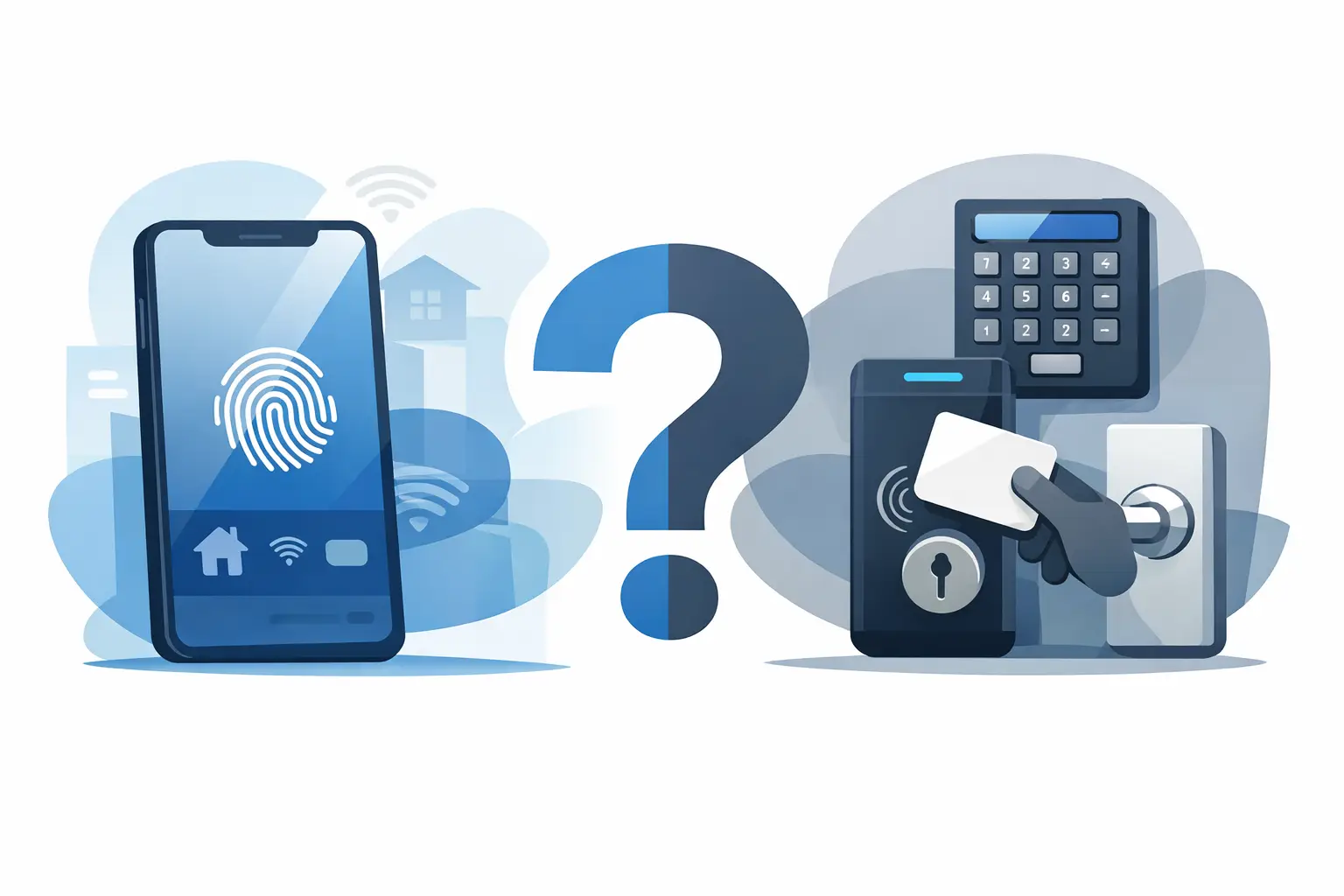
A macro pad earns its space because it puts commands within reach. Then the space around it starts to disappear. Keyboard on one side. Mouse on the other. Stream controls, audio controls, charging gear, notes, cables, and another small rectangle asking for a permanent place on the desk.
So, can one device replace keypads? For many desktop users, yes – but not by copying every feature of a keypad button for button. The better question is whether one device can handle the commands that interrupt your flow most often, without creating a new surface to manage.
That distinction matters. Replacing a keypad is not about having more inputs. It is about putting the right inputs where your hand already is.
What keypads actually solve
Keypads, macro pads, and stream-control devices exist for a reason. They reduce multi-key shortcuts into one action. A single press can start recording, switch scenes, mute a mic, run a script, open a tool, or trigger a game command. For editors, creators, developers, and gamers, that compression can save real time.
Their weakness is physical expansion. Each new function usually arrives as another visible control, another cable, another software layer, and another object competing for desk territory. That may be acceptable in a dedicated studio. It is less appealing when you want a clean work surface that can shift between work, play, and creation without being rebuilt every day.
A device does not need to reproduce every possible keypad workflow to be useful. It needs to absorb the high-frequency actions that make you move away from the mouse, break concentration, or hunt for a key.
Can one device replace keypads for your workflow?
It depends on the kind of control you need.
If your shortcuts are short, repeatable, and tied to the active task, a programmable surface under your mouse hand can replace a surprising amount of keypad use. Think play and pause, push-to-talk, timeline markers, brush changes, copy and paste actions, scene switching, app commands, or a few game abilities. These are actions where speed matters, but visual confirmation often does not.
If you rely on dozens of labeled commands, changing readouts, folders of profiles, or long sequences you need to inspect before triggering, a dedicated keypad may still be the better tool. A video switcher with named scene buttons and status indicators is built for glanceable operation. A physical keypad with custom keycaps also has an advantage when muscle memory depends on distinct button shapes and locations.
The replacement question is therefore not absolute. One device can replace the keypad functions that are closest to your natural hand position. It may not replace a full command console designed for complex, visible control.
The mousepad is the overlooked control zone
Your mousepad already occupies prime real estate. It sits beneath the hand that navigates nearly every desktop task. Yet on a normal setup, it only tracks the mouse.
A pressure-sensitive desk surface changes that relationship. Instead of reaching to a separate macro pad, you press an assigned zone on the pad itself. The control is present when you need it and visually quiet when you do not.
This approach works because it does not ask you to learn a new desk ritual. Your hand is already there. The control layer lives inside a familiar object rather than beside it.
KAGE GhostPad applies this idea through an invisible 4 by 4 grid of 16 pressure-sensitive zones. Each zone can be configured in a browser for shortcuts, macros, media actions, game inputs, and workflow commands. No drivers. No installs. The surface remains a mousepad first, then becomes a control system when pressure is applied.
That is a different category from a keypad. The goal is not a smaller button board. The goal is to remove the board from view.
What works best on a hidden control surface
Fast actions with low ambiguity
The best commands for an invisible pressure zone are ones you use often and can trigger without looking. Mute microphone. Skip track. Add a marker. Toggle a tool. Start or stop capture. Trigger a saved shortcut. Switch a mode.
These actions gain value from proximity. You do not need a screen or a labeled button if the location becomes familiar after a few sessions. A zone near the lower edge can become media control. A corner can become push-to-talk. A central area can handle an editing command used hundreds of times per project.
Workflows that change by mode
A single static keypad has a fixed physical layout. A smart surface can change context. One mode can be built for gaming, another for editing, another for streaming, and another for focused work.
That does not mean every task needs its own profile. Too many modes create their own friction. The practical move is to create a small set of clear layouts around the software and activities you return to most. Keep command placement consistent where possible. Let modes handle the exceptions.
Clean setups with limited reach
Small desks, compact battlestations, shared workspaces, and laptop-centered setups benefit most. In these environments, every extra peripheral takes more than physical space. It adds visual noise and makes the setup feel less deliberate.
A hidden control surface preserves the command layer without demanding another USB port, another stand, or another square of desk real estate.
Where a dedicated keypad still wins
Minimalism should not become denial. A separate keypad remains the right choice in a few cases.
First, it wins when labels are essential. If your commands change constantly or you need to see exact button names, a visible display is useful. Second, it wins when tactile differentiation is critical. A grid of identical keys can be mapped through feel in ways an invisible zone grid cannot fully duplicate. Third, it wins when you operate a high number of commands at once, especially in live production where one mistaken press has immediate consequences.
There is also a practical learning curve. Hidden zones trade visual labels for a cleaner desk and shorter hand travel. That trade is rewarding only if you are willing to establish muscle memory. Users who prefer every command visibly marked may find the abstraction less comfortable.
The strongest setup may not be an all-or-nothing replacement. A hidden surface can take over daily, repeated controls while a dedicated keypad remains reserved for deeper production work. That is still a major reduction in clutter and reach.
How to decide what should disappear from your desk
Start with behavior, not gear. Look at the last hour you spent at your computer. Which actions made you move your hand away from the mouse? Which keyboard shortcuts do you repeat enough to notice? Which controls do you need instantly, but rarely need to see?
Those are the best candidates for a pressure-sensitive surface.
Do not start by mapping all 16 zones. Start with four. Assign actions that are frequent, simple, and easy to verify: media control, mute, a recurring app command, and one task-specific shortcut. Use them for several days. If you begin triggering them without searching, add more.
Placement matters more than quantity. Put the most urgent actions in the easiest-to-reach zones. Keep accidental presses in mind, especially near areas used for resting your hand. Commands with serious consequences should require a deliberate zone choice or remain on a dedicated device.
Less hardware, better control
The best peripherals do not demand attention just to justify their presence. They reduce a movement, remove a decision, or keep a workflow intact. A smart desk surface can do all three by turning unused territory into an input layer.
One device will not replace every keypad for every user. It can, however, replace the extra device you reach for most often. Begin with the actions that pull you out of flow, and let your desk earn back the space.
Leave a Reply