
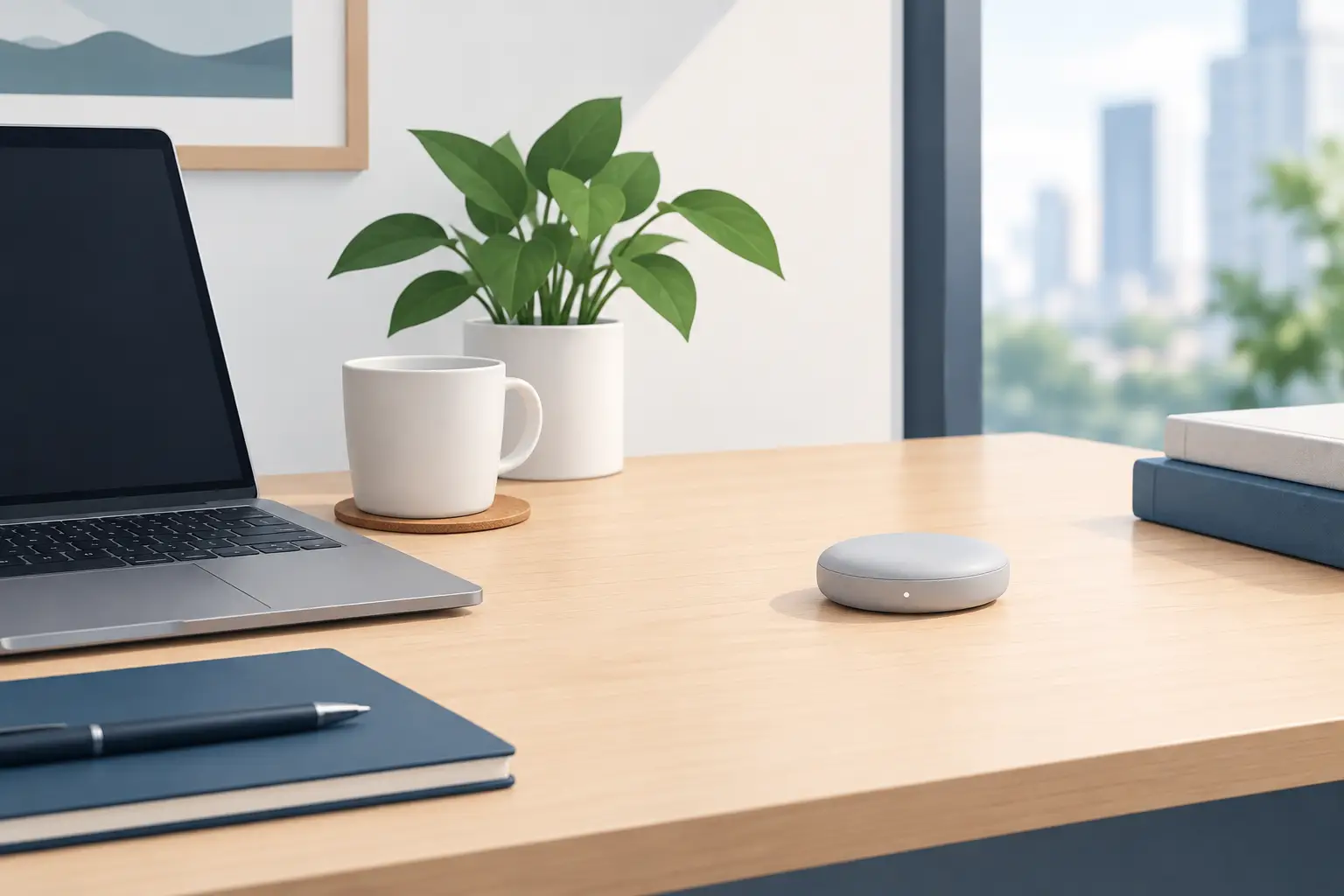
A clean setup productivity device should not demand another square of desk space. It should remove a reach, a cable, a visual distraction, or a repeated action without asking you to redesign the place where you work and play. The best control is often the one that stays out of sight until the moment you need it.
That is the gap most desktop gear ignores. Power users build capability by adding devices: a macro pad, a control deck, a media controller, a tablet, another dock. Each one can be useful. Together, they can turn a focused setup into a field of blinking rectangles.
The alternative is not less control. It is better placement.
Why clean setups lose functionality
A clean desk is often treated as an aesthetic choice. For people who edit video, write code, stream, produce music, or play competitive games, it is also a performance decision. Every visible device competes for attention. Every new control surface creates another hand movement, another cable route, and another object to maintain.
But removing devices creates its own problem. Keyboard shortcuts are powerful, yet they can be hard to remember and awkward to reach. Mouse software can offer extra buttons, but a mouse only has so much physical real estate. On-screen controls interrupt the canvas, timeline, game, or terminal you are trying to stay inside.
This is why minimal setups can become less capable than they look. The desk is clear, but the workflow is not.
A better approach puts commands where your hand already spends most of its time. For desktop users, that place is the mousepad.
The clean setup productivity device belongs under your hand
The mousepad has always been passive. It provides glide, control, and a defined working area. Then it stops. Yet it sits directly beside the keyboard and under the mouse hand for hours at a time.
Turning that surface into an input layer changes the equation. Instead of reaching toward an extra device, you can press a defined area of the desk surface to trigger an action. The interaction stays close. The desk stays calm.
KAGE GhostPad applies this idea through invisible pressure-sensitive zones built into a smart desk surface. Its prototype uses a 4 by 4 grid with 16 programmable zones. Those zones can be assigned to shortcuts, macros, media controls, game actions, and workflow commands, then accessed without introducing a separate panel into your visual field.
The point is not to replace the keyboard. It is to remove the commands that break momentum when they live somewhere else.
For an editor, that may mean play, pause, cut, marker, or undo close to the timeline hand. For a developer, it could be build, run, terminal commands, and window controls. For a streamer, scene changes, mute, clip capture, and audio actions can remain available without another illuminated device at the edge of the desk.
The best assignments are usually the actions you use often enough to feel, but not so often that they deserve a dedicated keyboard key.
Keep the desk surface quiet
There is a difference between hidden controls and confusing controls. A control surface that hides every function can become difficult to trust. The design challenge is to preserve a clean visual system while giving users enough structure to build muscle memory.
Pressure zones solve part of that problem because they can occupy fixed positions. Once you assign a function to a location, that location does not move between apps or sessions. Your hand learns the map over time.
Still, invisible control comes with trade-offs. A physical macro pad gives you raised keys, labels, and instant visual confirmation. A smart mousepad trades that tactile clarity for a cleaner setup and less reach. It will be most useful for users who prefer a compact command layer and are willing to spend a short setup period learning it.
That setup period matters. Do not assign 16 unrelated commands on day one. Start with a small set of actions that occur throughout your day. Place them in logical groups. Keep media controls together. Keep editing actions together. Reserve one area for system-level commands. The surface becomes faster when the layout has a system behind it.
Build around modes, not clutter
One fixed grid cannot serve every application perfectly. A game, an editing suite, and a coding environment ask for different actions. This is where mode switching becomes more useful than adding more hardware.
A mode lets one physical area carry a different command set depending on what you are doing. Your media zone can become a streaming zone. Your editing controls can become game macros. The hardware remains still while the context changes.
This approach is especially effective for hybrid desks. Many people use the same PC for work, creative projects, calls, and games. A desk full of dedicated devices assumes each activity needs its own permanent hardware. Most users do not need that. They need the right controls at the right time.
Browser-based configuration supports that model because the mapping can be adjusted without installing another heavy desktop application. No drivers. No installs. Plug in the device, open the configuration interface, and shape the surface around the work in front of you.
That does not mean every workflow needs layers. If you only need play/pause, mute, and screenshot, a simple layout is better. Modes earn their place when they reduce repetition, not when they add another thing to remember.
Where it works best
A smart desk surface is not only for people with extreme multi-monitor rigs. It has a clear role anywhere repeated actions pull attention away from the main task.
For video editors and designers, the value is rhythm. Commands such as playback, frame navigation, tool switching, and exports can sit beside the mouse rather than behind a keyboard combination. The gain is small per action and significant over a long session.
For developers, the value is context retention. Running a project, opening a terminal, invoking a test command, or controlling communication tools can happen without turning away from the editor. The device does not replace a well-built keyboard workflow. It supports the commands that are personally useful but not worth memorizing as complex shortcuts.
For gamers, the value is access without desk sprawl. A pressure zone can activate a macro, push-to-talk action, recording command, or media function while leaving the main keyboard layout intact. Competitive players should be deliberate here. Any macro use must fit the rules of the game and platform.
For streamers and music producers, the value is fewer visible controllers. Scene actions, audio functions, recording controls, and utility commands can live in the same area that already supports mouse movement. This is particularly useful in tight spaces where every peripheral competes with microphones, mixers, cameras, and monitors.
A smarter surface is not automatically a better setup
More functionality is only better when it reduces friction. If a command requires hunting for a zone, checking a profile, and wondering whether the press registered, it has failed the clean-desk test.
The right implementation needs reliable pressure recognition, stable positioning, clear configuration, and enough intentionality that users can build confidence in the surface. It should also preserve the first job of a mousepad: consistent tracking and comfortable movement. A control layer is not an excuse for a compromised desk mat.
There are practical questions, too. Users who rely on strong tactile feedback may still prefer physical keys for critical commands. People with highly specialized workflows may need more labeled controls than an invisible grid can provide. And anyone who changes shortcuts constantly may find a traditional programmable pad easier to scan.
That is not a weakness of the concept. It defines the use case. The smart surface is strongest when the goal is to keep high-value controls close without turning the desk into a command center from a science-fiction set.
Design the commands you touch most
A clean setup is not empty. It is intentional. It gives every object a reason to occupy space, and it keeps the most useful actions near the hands that perform them.
Start by noticing the commands that interrupt your flow. Not the actions you perform once a week, but the small repeated reaches that pull you away from the task. If those commands can disappear into the surface already under your hand, your desk gains capability without gaining clutter.
That is a useful standard for any peripheral: it should earn its place by making the system around it feel simpler.
Leave a Reply