
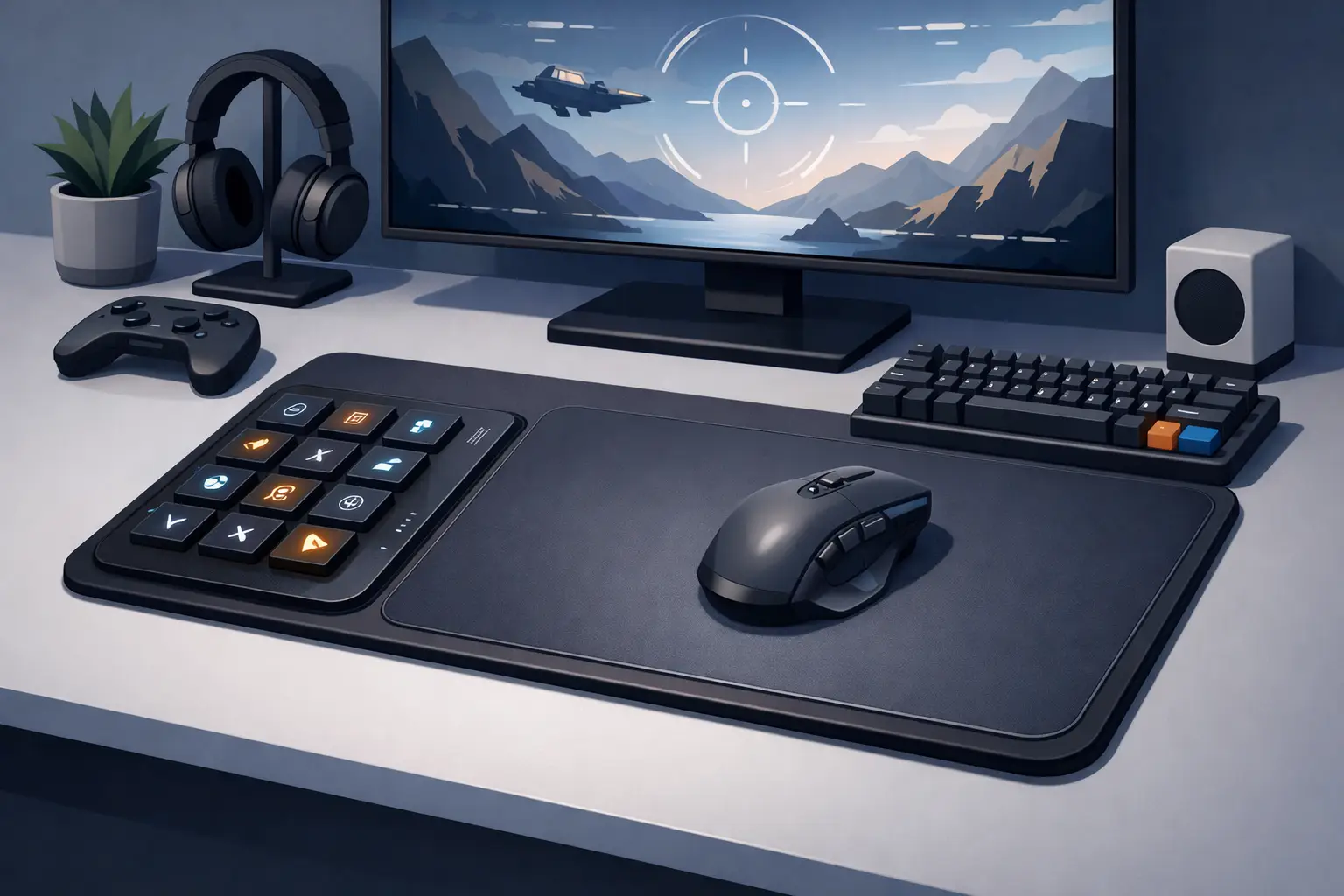
Your mouse hand already knows where to go. The problem with a typical gaming shortcut mousepad setup is that the shortcuts live somewhere else: on a macro pad, a stream controller, a keyboard layer, or an app window competing for screen space. Every reach is small. Over a long session, each one breaks position, timing, and focus.
A better setup does not add another control device. It moves frequent commands into the area your hand already occupies. That is the premise behind a shortcut-enabled mousepad: keep the desk surface clean, keep the mouse in play, and put high-value actions within a press.
Start with the actions that interrupt play
Do not begin by mapping every possible command. That creates a control surface that looks impressive and feels slow. Start with the moments when you currently lift your hand, glance away, or lose momentum.
For competitive games, that may be push-to-talk, map controls, inventory, a utility action, or a rapid profile switch. For streamers, it may be mute, scene changes, replay markers, chat controls, and music. For creators and developers, the same surface can handle undo, save, play and pause, timeline tools, screenshots, or a build command.
The common test is simple: does this action happen often enough that reaching for it feels like friction? If yes, it deserves a place near the mouse. If it is rare, destructive, or requires visual confirmation, keep it on the keyboard or in software.
A shortcut mousepad is not meant to replace every input. It is meant to protect your primary position.
Design your gaming shortcut mousepad setup by reach
Placement matters more than the number of available shortcuts. A pressure zone near the wrist is fast but easier to trigger by accident. A zone farther from the mouse path is safer but costs more movement. The right layout depends on your sensitivity, grip, game genre, and desk posture.
Think in three reach bands. The closest band should contain commands you can use without moving the mouse far from its active area. These are low-risk, high-frequency actions such as mute, push-to-talk, or a single repeatable game ability. The middle band is for actions that need intent but still need speed, such as changing a scene or opening a map. The farthest band can hold controls used between rounds, during a loading screen, or while editing.
Do not put a critical combat action beneath the exact area where your wrist rests. Pressure-sensitive surfaces are designed to respond, but a good layout still accounts for real movement. Leave a quiet zone where your hand naturally anchors. Build outward from there.
For right-handed players, the most useful controls often sit along the left or upper edge of the mouse area, depending on pad size and mouse sensitivity. Left-handed users should reverse the logic. There is no universal grid. There is only the grid that keeps your aim area clear.
Keep emergency controls deliberate
Some commands should never be one accidental press away. Ending a stream, muting system audio, quitting a match, deleting media, or triggering a broad macro deserves a more distant zone, a confirmation step, or a different profile.
This is where minimalist setups outperform overloaded ones. Fewer visible controls do not mean fewer safeguards. They mean each command has a clear job and a deliberate location.
Build profiles around modes, not applications
A cluttered setup usually grows because every new game or program gets another dedicated device layer. A cleaner approach is to build a small set of modes around the way you work: play, stream, edit, focus, and system.
Your play mode might prioritize voice, game utilities, and clips. Stream mode can put audio, scenes, and moderation tools at hand. Edit mode can shift the same physical zones toward timeline navigation, media playback, markers, and undo. Focus mode can reduce the surface to music, timers, and a few work commands.
The surface stays still. The command layer changes.
This is more useful than trying to memorize a completely different grid for every title. Similar actions should remain in similar positions across modes. If the upper-left zone is always communication, keep it that way. If the lower edge is always system controls, preserve that rule. Spatial memory is the real performance gain.
Mode switching also has a trade-off. It adds flexibility, but too many modes create uncertainty. Keep the number low enough that you can recall the active profile without checking. For most desks, three to five well-defined modes are more practical than a catalog of niche layouts.
Use macros with restraint
Macros can remove repetitive work. They can also introduce delays, errors, and unexpected behavior when an app changes focus or a game blocks automated inputs. Use them where the sequence is predictable and allowed, not where timing or competitive rules make automation a liability.
For gaming, a single shortcut should usually mean one intentional action. That keeps inputs legible and reduces the risk of a macro behaving differently after a patch. For creative work, macros are often more valuable: rename a clip, apply a repeatable command sequence, create a marker, export a frame, or control playback.
The strongest shortcut is often not a complex chain. It is a command you no longer have to hunt for.
Before assigning a macro, ask whether a keyboard shortcut already does the job quickly. If it does, map the existing shortcut rather than inventing a new system. The goal is less cognitive load, not more customization for its own sake.
Protect the mouse surface first
A gaming mousepad is still a mousepad. Tracking, glide, stopping power, and comfort come before control features. A layout that interferes with a low-sensitivity flick or makes you tense your hand is not an upgrade.
Test your setup in a real session, not just at the desk while configuring it. Play a few matches. Edit a project. Work through the commands that usually interrupt you. Notice whether you avoid zones because they are too far away, hit them by mistake, or slow down to remember what they do.
Then remove or relocate what is not working. A pressure zone can be technically functional and still be wrong for your habits.
This is especially relevant for players who use broad arm movements. Keep active zones outside the path of large sweeps. Players with higher sensitivity may have more usable space around the mouse, while low-sensitivity players may benefit from edge-oriented controls. Neither approach is better. The pad must serve the movement style, not force a new one.
Make feedback clear without adding visual noise
Invisible controls need reliable feedback. That does not mean covering the desk in labels, RGB indicators, or icons. It means knowing that an input registered and knowing which mode is active.
Use simple feedback where possible: a subtle sound, a small on-screen confirmation, an application state change, or an indicator that appears only when needed. For streaming or audio, confirmation matters because a silent failure can be costly. For a noncritical edit shortcut, a quiet response may be enough.
If you need labels during the first week, use temporary reference points outside the active mouse area. Remove them once the layout becomes muscle memory. The end state should feel less like operating a panel and more like using a desk that understands your hand.
Configure once, then refine through use
A good control surface should not demand another software ritual before every session. Browser-based configuration and plug-and-play behavior keep the system close to the simplicity of a conventional mousepad: connect it, assign commands, use it.
KAGE GhostPad approaches this with a 4 by 4 grid of pressure-sensitive zones built into the desk surface. The point is not to add sixteen more things to look at. The point is to make sixteen positions available when they earn their place in your workflow.
Set an initial layout, then give it a week. Change only the shortcuts that create friction. Frequent rearranging prevents spatial memory from forming, while never adjusting traps you in a layout that looked logical but fails under pressure.
The right setup becomes quiet. Your hand stays where it belongs. Your desk stops collecting control hardware. And the commands you rely on begin to feel like part of the surface itself.
Leave a Reply