
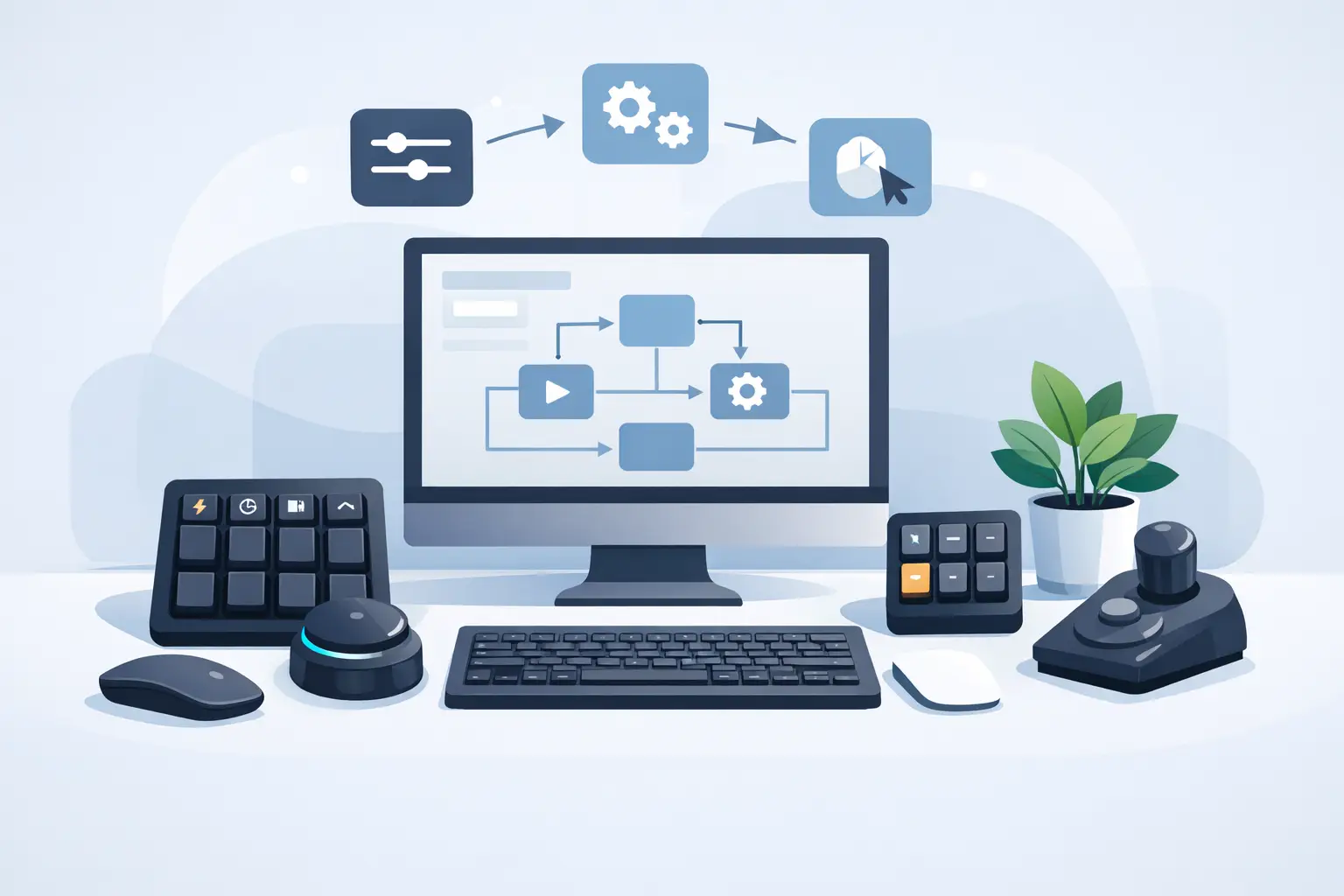
A macro is only useful if you can reach it without leaving the task. That is the real question behind how to build desk macros: not which commands you can automate, but which actions deserve a permanent place under your hand. A clean system cuts friction. A crowded one just gives you another panel to manage.
The best desk macros handle repeat actions, mode changes, and commands that interrupt flow. Think push-to-talk, timeline cuts, scene switches, paste-as-plain-text, music controls, app launches, or a common code snippet. Start there. Leave the novelty commands behind.
Build desk macros around friction
Watch your hand for one work session. Every time it leaves the mouse and keyboard to find a command, adjust a setting, or click through a menu, mark it down. You are looking for repeated detours, not every action you perform.
A good candidate has three qualities: you use it often, it takes more than one input, and triggering it at the wrong moment will not cause damage. Muting your mic, cutting a clip, or opening a project folder are strong first macros. Deleting a folder, sending a client message, or publishing a scene live are not.
Frequency matters, but interruption matters more. A command used ten times a day can be worth mapping if it breaks concentration every time. For editors, that might be ripple delete or adding a marker. For developers, it may be opening a terminal, running tests, or formatting a file. For gamers, it could be a utility action that should not steal movement keys.
Do not begin with 16 commands because you have 16 available positions. Begin with four. If those four become instinctive, expand. Empty space is not wasted capacity. It is room for a system to breathe.
Choose the right trigger for the job
Desk macros can live on a keyboard layer, a dedicated macro pad, a foot switch, mouse buttons, software hotkeys, or a pressure-sensitive desk surface. Each option creates a different kind of reach.
Keyboard layers work well for commands that belong to typing and coding. They are fast, but they can be difficult to remember and may conflict with application shortcuts. Mouse buttons are ideal for immediate actions during pointer-heavy work, such as a browser back command, a temporary tool switch, or push-to-talk. Their limitation is simple: too many functions on the mouse can make the primary tool feel busy.
A macro pad gives you labeled, dedicated controls. That is useful for streaming, audio routing, and complex production work. It also adds another object, another cable, and another visual block to the desk. If your setup already has a keyboard, mouse, audio interface, camera controls, and display gear, the cost is not only money. It is attention.
Surface controls offer a different model. The command lives where your resting hand already is. KAGE GhostPad, for example, places programmable pressure zones inside the mousepad area rather than asking for another visible controller. That approach makes particular sense for actions you need while mousing: media control, app switching, a stream cue, or a repeated editing command.
There is no universal winner. Choose the trigger that keeps your hand closest to its normal working position. The macro should feel like part of the task, not a trip away from it.
Map by location, not by memory
A macro layout becomes fast when location carries meaning. Do not assign commands in the order you think of them. Build small spatial groups.
Put navigation or timeline actions together. Keep media controls in another area. Place communication commands, such as mic mute or camera toggle, somewhere distinct from destructive actions. If you use a 4 by 4 grid, reserve corners for high-confidence commands and use the center for actions you trigger constantly.
The same principle applies across devices. A left-side cluster might always mean workspace navigation. A right-side cluster might always mean output: record, export, go live, render, or send. Your muscle memory does not care whether the command is on a keyboard layer or desk surface. It cares whether the logic stays stable.
Avoid making every macro a different type of action. A layout where one key opens Spotify, another types an email signature, another changes a brush, and another launches a game has no internal map. It can work, but it will not become automatic. Group by context or by action family.
Write macros that fail safely
A macro can be as simple as one shortcut. It can also be a chain: open an application, wait, switch a window, paste text, and press Enter. Longer chains feel impressive in a demo. They are also more vulnerable to timing changes, pop-ups, app updates, and a window opening in the wrong place.
Keep automation deterministic. Use native application shortcuts whenever possible. If a command depends on screen position, image recognition, or a fixed loading delay, treat it as fragile. Test it after an operating system update, application update, or monitor change.
For higher-risk actions, add a confirmation step or separate the macro into two deliberate triggers. A streaming macro might prepare a scene on one input and go live on another. A creative workflow could select export settings first, then begin the render. One extra action is a fair trade for preventing an expensive mistake.
Text macros need the same restraint. Snippets are excellent for repeated code, support replies, file naming patterns, and project templates. They are less useful when the text needs judgment. Automate the structure, not the decision.
Build modes only when context truly changes
Modes multiply available macros by changing what the same control does in different applications or states. A desk zone could control playback while editing, switch scenes while streaming, and trigger utilities while gaming. This is powerful, but it can also create invisible complexity.
Use modes when the contexts are clearly separated and the active mode is obvious. An editing mode, streaming mode, and general desktop mode are easy to understand. Six nearly identical modes are not. If you have to pause and ask what a control currently does, the layout has already lost speed.
Name modes plainly. Use labels such as Edit, Stream, Code, and Play. Keep one or two anchor commands consistent across every mode where possible, such as mute, media pause, or a safety command. Consistency lowers the mental cost of switching.
Test your desk macro system under pressure
Do not judge macros while calmly configuring them. Test them during the work they are meant to improve. Run a live recording. Edit a time-sensitive clip. Play a competitive match. Work through a coding task with notifications arriving.
Look for three signals. First, do you trigger the action without looking? Second, did the macro remove a step or merely relocate it? Third, do you trust it when the stakes are high? If the answer to any of those is no, revise the mapping, simplify the sequence, or remove it.
A useful macro should save more than seconds. It should preserve posture and attention. Reaching less matters over long sessions. So does staying inside the application instead of breaking focus to hunt through menus.
Review the system every few weeks. Your workflow changes with new projects, games, clients, and tools. Delete macros you no longer use. Promote the commands that keep appearing in your day. The goal is not a desk covered in controls. It is a quieter interface that responds exactly when you need it.
Build for the actions that pull you out of flow, then let repetition decide what earns a permanent place under your hand.
Leave a Reply