
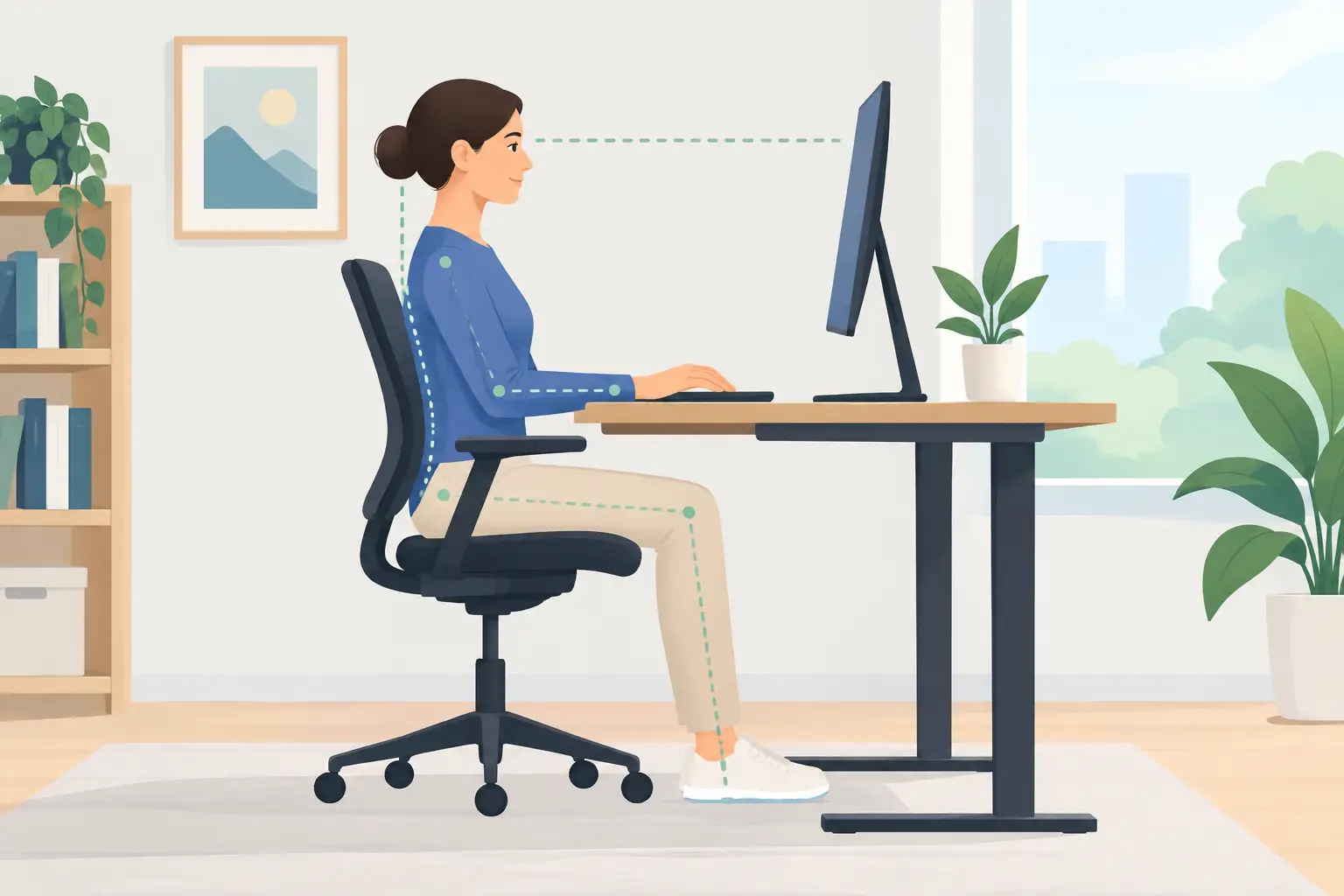
A desk can look disciplined and still work against you. The usual signs are easy to miss: a shoulder that rises toward your ear while aiming, a wrist bent against the mousepad edge, or the constant lean toward a keyboard, second screen, dial, or macro pad. Learning how to improve desk ergonomics starts with seeing the setup as one connected system, not a collection of accessories.
For gamers, editors, designers, developers, and streamers, comfort is not a soft feature. It protects focus. A better desk position reduces unnecessary movement, keeps your hands closer to neutral, and makes long sessions feel less like a series of corrections.
Start With the Body, Not the Desk
Ergonomics is often reduced to buying an expensive chair. A good chair helps, but it cannot fix a desk that forces bad positions for eight hours. Start by setting your body in a position that can stay relaxed.
Place both feet flat on the floor or on a stable footrest. Your hips should sit slightly higher than your knees, with your lower back supported rather than collapsed. Sit close enough to the desk that you do not need to reach forward to type or use the mouse.
Your elbows should land near a 90 to 110-degree angle, resting close to your sides instead of floating outward. This is not about holding a rigid posture like a mannequin. It is about giving your shoulders room to drop. If you feel tension between your shoulder blades after a session, your controls are probably too far away, too high, or both.
Desk height determines much of this. A fixed-height desk may be perfect for one person and wrong for another. If the desktop is too high, raise the chair and support your feet. If that puts your monitor too low, raise the monitor independently. Avoid solving every problem by hunching or shrugging.
Set Monitor Height for Your Actual Work
A monitor that is a few inches too low can turn into a daily forward-head posture. Position the top edge of the primary display roughly at or slightly below eye level. The screen should sit about an arm’s length away, then move closer or farther based on text size, resolution, and vision needs.
The correct distance is practical, not universal. If you lean forward to read text, do not simply pull the monitor closer. Increase interface scaling or font size first. A larger display placed too close can create its own neck and eye strain.
For a single screen, center it with your body and keyboard. For two displays, center the monitor you use most. If both get equal time, place the gap between them directly in front of you and angle each screen inward. The goal is to move your eyes first, then your head. Constant torso twisting is a setup failure, not a productivity strategy.
Laptop users have a separate problem: the screen and keyboard are attached, so one is usually in the wrong place. For sessions longer than a quick reply, raise the laptop screen and use an external keyboard and mouse. It is one of the highest-impact changes you can make.
Build a Neutral Mouse and Keyboard Zone
Your keyboard and mouse should occupy the same immediate work zone. Keep both close enough that your upper arms can stay relaxed and your forearms can move without reaching. If the mouse is far to the side because a full-size keyboard dominates the desk, consider whether you need that width every day.
A compact keyboard can create valuable mouse space, especially for low-sensitivity gaming or precision creative work. But smaller is not automatically better. If you rely on a numpad for spreadsheets, coding shortcuts, or production work, removing it may slow you down. The better decision is the one that reduces reach without creating new friction.
Keep wrists as straight as possible. Do not plant them hard on the desk and pivot from a locked point. Move the mouse with a combination of forearm and shoulder motion, particularly during broad movements. For detailed work, lower mouse sensitivity can be more controlled, but only if you have enough surface area to avoid repeated edge-of-pad resets.
Keyboard angle matters too. A steeply raised keyboard can force the wrists into extension. Try a flatter position first, with feet folded down if your keyboard allows it. Some users prefer a slight negative tilt, where the front edge sits a little higher than the back. Test it over real work, not five minutes of typing.
Remove Reach From the Workflow
Ergonomics is also about where actions happen. Every repeated reach to a control deck, media knob, phone, or distant keyboard shortcut adds movement and breaks attention. One reach is nothing. Hundreds of reaches in a workday become part of the strain.
Map your most frequent actions: push-to-talk, timeline cuts, brush changes, mute, play/pause, scene switching, compile commands, undo, or in-game actions. Then place those actions where your hands already work. Keyboard shortcuts are useful, but they can demand awkward finger combinations. Extra devices add capability, but they often add clutter and lateral reach.
This is where an integrated control surface can make ergonomic sense. KAGE GhostPad places configurable pressure zones inside the mouse surface, keeping selected commands under the hand already operating the mouse. The value is not adding more inputs. It is reducing the distance between intent and action.
Be selective. Assigning every possible command creates cognitive noise and accidental triggers. Use nearby controls for high-frequency actions that interrupt flow, not for functions you use twice a month.
Use the Surface to Support Movement
Your mousepad is not decoration. It defines the space where your hand spends much of the day. A surface that is too small can force abrupt wrist movements. One that is too thick or too soft may change your mouse control and raise your wrist beyond a comfortable position.
Choose a surface large enough for your actual sensitivity and workflow. A broad desk mat often helps because it gives the keyboard and mouse a consistent plane. That said, extra-large mats can become counterproductive if they push the keyboard too far forward or encourage you to spread gear across the desk just because space exists.
Pay attention to the desk edge. A sharp edge pressing into the forearm can cause discomfort even when the rest of the setup is well arranged. A rounded desk edge, a softer surface, or a thin forearm support can help. Avoid thick wrist rests that prop the wrist upward during active typing or mouse movement. They are better used as a rest between actions, not as a platform for working.
Keep the Desk Clear Enough to Move
Cable clutter is not only visual clutter. It limits where you can position gear, catches on mouse movement, and quietly encourages compromised layouts. Route cables so the mouse area stays free. If your headset, controller, charger, or audio interface has no defined place, it will eventually occupy the space your arm needs.
A clean desk should not mean an empty desk. It should mean every object has a role and a position. Keep daily tools within easy reach. Move occasional tools out of the primary zone. Put the items that demand the most precise or repetitive input in the center of your setup.
Lighting belongs here as well. Screen glare makes people crane their necks or shift their shoulders to find a readable angle. Position the display perpendicular to windows when possible, and use diffuse task lighting rather than a bright source reflected directly in the panel.
Change Position Before Pain Makes the Decision
Even a perfectly tuned setup cannot make static posture healthy. The goal is not to find one ideal position and freeze there. The goal is to create a neutral baseline, then move often enough that no joint carries the same load for too long.
Between matches, renders, meetings, or focused work blocks, stand up. Look into the distance. Roll your shoulders, open and close your hands, and take a few steps. You do not need a complex routine or an alarm every ten minutes. You need a setup that makes movement easy instead of trapping you in a cramped command center.
The best ergonomic desk does not announce itself. Your monitor is where you expect it. Your mouse has room to move. Your most-used controls stay close. By the end of a long session, your attention is still on the work, the game, or the idea in front of you – not on the part of your body asking you to stop.
Leave a Reply