
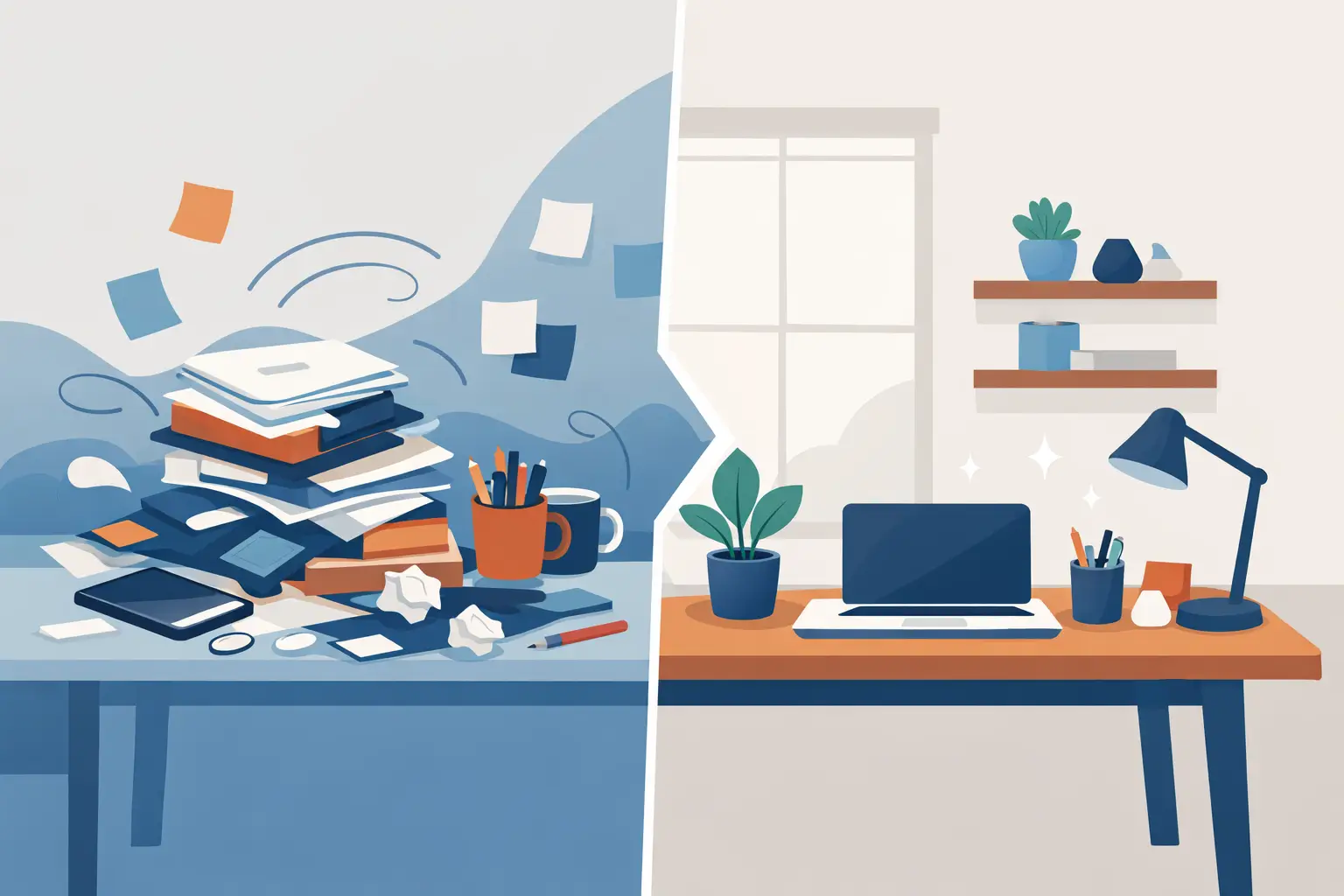
A desk can look expensive and still work badly. The usual problem is not one messy cable or one coffee cup. It is the accumulation of devices added to solve small friction points: a macro pad for shortcuts, a controller for media, a dock for ports, a charger for accessories, a stand for headphones. Each item may earn its place. Together, they turn your workspace into a field of obstacles.
Learning how to reduce desk clutter is not about stripping your setup down until it looks empty. It is about removing visual noise, wasted motion, and devices that force your hands away from the work. The best desk is not the one with the fewest tools. It is the one where every tool has a clear job and a deliberate place.
Start With the Surface You Actually Use
Your desk surface is premium real estate. Before buying organizers, take everything off it. Not just the obvious clutter. Remove the accessories that have become permanent by default: spare controllers, old adapters, notebooks, charging cables, secondary keyboards, and gear waiting for a future use case.
Then put back only what you actively use in a normal session. For a developer, that may be a keyboard, mouse, display, audio interface, and a small notebook. For a streamer, it may include a microphone and camera controls. For an editor, storage and color-critical equipment may be non-negotiable.
This is where minimalism gets practical. A clean desk does not mean every setup should look the same. It means the visible layer should support the work in front of you, not every possible task you might do someday.
Keep a simple rule: if an object is not used weekly, it should not occupy permanent space within arm’s reach. Store it in a drawer, on a shelf, or in a labeled equipment box. The exception is safety-critical or frequently swapped gear, such as backup drives used for active projects.
Reduce Desk Clutter by Removing Duplicate Controls
Most crowded setups have a hidden cause: duplicate input. A user adds a macro pad for editing, a media controller for music, a hotkey device for streaming, and a separate keypad for gaming. Those devices can be excellent. They also compete for the same limited workspace.
Before adding another controller, map what it actually does. You may find that several devices exist for the same few actions: play and pause, mute, push-to-talk, scene changes, app shortcuts, timeline cuts, or window management. Consolidating those actions is often more effective than organizing around them.
There is a trade-off. Dedicated hardware with physical labels can be faster when you work with complex, high-stakes commands. A live streamer may want clearly marked controls during a broadcast. A video editor working on a demanding production may benefit from a specialized panel. Do not remove a device just because it is visible if it genuinely improves speed and accuracy.
But for repeated commands that do not need another screen, another cable, or another footprint, use the hardware already under your hand. KAGE GhostPad takes this approach by placing configurable pressure zones inside the mousepad itself, giving shortcuts and macros a home without adding a separate control panel to the desk.
The principle matters more than the product: consolidate controls where your hands already rest. Less reaching means less interruption. Less interruption means better flow.
Treat Cables as Part of the System
Cable clutter is not a cosmetic problem. Loose cables catch on chair arms, restrict mouse movement, collect dust, and make a well-built setup feel temporary. The fix is not to hide every cable at any cost. It is to give each cable a planned route.
Start at the power source. Mounting a power strip beneath the desk removes the largest concentration of plugs from sight and makes cable lengths easier to manage. From there, route power and data separately when possible. This makes troubleshooting cleaner and reduces the tangled bundle that develops when everything follows the same path.
Use cable sleeves or channels for long runs, then use reusable ties for short branches. Avoid permanently cinching cables that you regularly replace or move. A desk setup changes over time, and cable management that is too rigid becomes annoying the first time you need to swap a keyboard or reconnect an audio device.
Leave a small service loop behind monitors and desktop systems. It gives you enough slack to reposition gear without pulling on ports. The goal is controlled slack, not zero slack.
For charging, choose one charging zone rather than allowing cables to spread across the desktop. A drawer, side tray, or rear corner works well. If you charge a phone, earbuds, controller, and tablet every day, those items deserve a dedicated station. If you charge them once a week, they should not live on the desk at all.
Give Every Essential Item a Home
Clutter returns when objects have no endpoint. A pen, USB drive, SD card, lens cap, or pair of earbuds gets set down between tasks because putting it away takes more thought than leaving it there. Small items become visual noise fast.
Create a few fixed homes close to the point of use. Put writing tools in one compact tray. Store cards and adapters in a small divided drawer. Keep headphones on a hook or stand that does not consume mouse space. Place the items you use during a session within reach, then define where they go when the session ends.
This does not require an elaborate organization system. In fact, too many containers can create their own friction. A good system is obvious enough that you can reset the desk without thinking.
Vertical storage helps when the desk is shallow. Monitor arms free up space below the display. Under-desk mounts can hold a PC, dock, or audio interface if heat, access, and cable strain are considered. A wall rail or shelf can hold reference gear, controllers, and charging equipment without making the work surface feel crowded.
Use vertical storage selectively. If you need to grab something every few minutes, placing it behind or above you may create more friction than it removes. The best placement depends on frequency of use.
Reduce Visual Noise, Not Just Object Count
A desk can be technically organized and still feel chaotic. Mismatched colors, exposed packaging, oversized logos, visible adapters, and scattered lights all pull attention away from the screen and the task.
Choose a restrained visual system. That could mean dark peripherals with neutral cable sleeves, or a lighter desk with white and aluminum equipment. It does not need to be monochrome. It needs to feel intentional.
Lighting is part of that system. One focused task light is often more useful than several bright RGB sources competing for attention. Ambient lighting can improve comfort, especially during long sessions, but it should support the workspace rather than dominate it.
The same applies to accessories. A clean desk mat can visually unify your keyboard, mouse, and work area. A monitor arm can remove the visual weight of a large stand. A compact dock mounted out of sight can preserve ports without creating another object to navigate around.
Build a Reset That Takes Two Minutes
The real test of a clean desk is not how it looks after a weekend overhaul. It is whether you can restore it after a long workday, a gaming session, or a late-night edit.
Create a shutdown reset that takes less than two minutes. Return headphones to their hook. Put the charging cable back in its zone. Clear cups and food. Close notebooks. Put loose tools into their tray. Straighten the mouse and keyboard. That is enough.
Do not turn this into a ritual with twenty steps. The more complicated the reset, the more likely you are to skip it when you are tired. A small daily reset prevents the need for a large monthly cleanup.
A weekly check is still useful. Wipe the surface, remove items that migrated onto the desk, and ask one question: what has been sitting here without helping? That question catches clutter before it becomes infrastructure.
A Clear Desk Should Still Feel Powerful
The goal is not an empty desktop built for photos. It is a workspace that feels fast, calm, and ready. Keep the tools that make you better. Remove the ones that duplicate functions, steal movement, or stay visible only because nobody decided where else they belong.
When control is built into the surfaces and routines you already use, your desk stops asking for attention. It gives it back.
Leave a Reply