
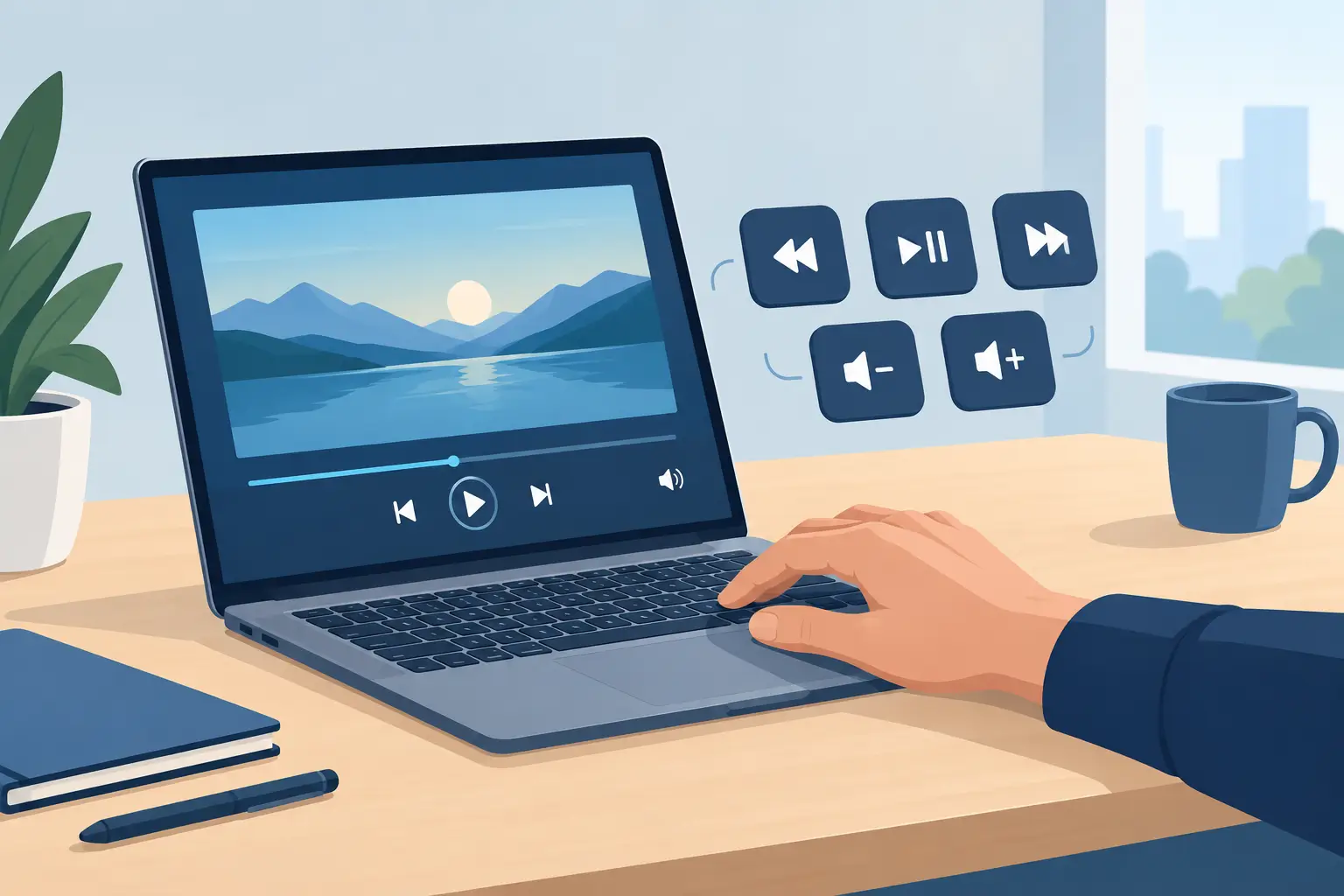
A track changes. A client call comes in. Your timeline is playing, your hands are on the mouse and keyboard, and the volume is suddenly wrong.
Media control shortcuts solve a small interruption that happens dozens of times a day. Play, pause, skip, mute, adjust volume, switch audio devices, answer calls. None of these actions are difficult. The friction comes from leaving the work in front of you to find the control somewhere else.
For anyone who spends serious hours at a desktop, that friction compounds. The right control setup keeps common actions close, predictable, and out of the way.
Why media controls still break focus
Most desktops already have media controls. They are just scattered across too many places.
A keyboard may have a volume wheel or function-row commands. Your headset has its own buttons. A streaming app has on-screen controls. Windows has a volume flyout. A separate macro pad might handle the rest. Each option works, but each asks you to remember where a specific action lives.
That is the real problem. Media control is rarely about speed alone. It is about maintaining position and attention.
A video editor does not want to move to a tiny player window to stop reference audio. A streamer cannot afford to hunt for a mute button when a notification starts playing through the wrong channel. A developer in deep work should not need to reach across the desk to pause a playlist before joining a call.
The best shortcut is not necessarily the one with the fastest theoretical input. It is the one you can trigger without looking, without shifting posture, and without interrupting the next action.
The media control shortcuts worth mapping
Not every media command deserves a dedicated control. A crowded layout creates its own kind of friction. Start with the actions that repeat often enough to become muscle memory.
Playback and volume
Play/pause is the foundation. It is useful across music, video, tutorials, streams, and background audio. Volume up and down follow close behind, especially for users moving between speakers, headphones, calls, and game audio.
Mute deserves its own consideration. It is not just a quieter version of volume down. Mute is an immediate state change, useful when someone walks into the room, a call starts, or a stream needs silence now.
Track forward and back are valuable for music-heavy work sessions. They matter less for some users. If you mostly listen to long mixes, podcasts, or ambient sound, those two zones may be better assigned to something else.
Calls and communication
Call controls are often the highest-value shortcuts on a work desk. Microphone mute, camera toggle, answer, decline, and push-to-talk can remove awkward seconds from meetings and voice chat.
The trade-off is context. A global microphone mute is powerful, but it needs a clear and deliberate gesture. You do not want to accidentally silence yourself in the middle of a presentation because you brushed the wrong input.
For that reason, high-consequence controls should be placed away from frequent media actions or assigned to a firmer press. Good control design is not only about access. It is about preventing the wrong access.
Audio routing and scene changes
Power users often need more than playback. They need to move sound between headphones and speakers, toggle a monitoring source, switch a streaming scene, or activate a recording workflow.
These commands can save real time, but they should earn their place. If you switch output devices once a day, a system shortcut may be enough. If you switch them ten times during a session, a dedicated control becomes part of the workflow.
Put controls where your hand already works
The cleanest desk setups do not eliminate controls. They eliminate unnecessary travel.
That is why the mousepad is such an interesting location for media control shortcuts. Your dominant hand already returns there between clicks, edits, and game actions. A control surface built into that area can reduce reach without adding a second lit-up device, another cable, or another visual object competing for space.
KAGE GhostPad takes this approach with invisible pressure zones built into the desk surface. The point is not to turn a mousepad into a screen full of icons. It is to keep useful commands under the hand while leaving the desk visually quiet.
Placement matters more than raw button count. Controls near the edge of the pad can work well for secondary actions such as track skip or volume changes. More deliberate zones can handle mute, recording, or a scene switch. The exact map depends on how you hold your mouse, how much space you use, and whether you work, play, or broadcast from the same setup.
A right-handed editor and a low-sensitivity FPS player may need very different layouts. One may want controls on the left or upper edge to avoid interfering with broad mouse movement. The other may prefer a small set of zones that sit outside the normal aim area. There is no universal perfect grid. There is only a layout that respects your movement.
Build a layout for muscle memory
A useful shortcut layout should feel boring after a week. That is a compliment. It means you no longer think about it.
Start with a core set: play/pause, volume down, volume up, and mute. Place them in an order that matches how you expect to use them. Volume down and up should sit beside each other. Mute should be distinct enough that you never confuse it with playback.
Then add one workflow-specific layer. For streaming, that might be microphone mute, scene switch, and clip marker. For editing, it could be play/pause, timeline marker, reference-audio mute, and render start. For gaming, think push-to-talk, Discord mute, music pause, and capture control.
Avoid assigning sixteen unrelated commands just because sixteen inputs exist. A surface with too many one-off actions becomes a cheat sheet. A smaller set of repeated actions becomes an extension of your hand.
Modes can help when the same desk supports different contexts. A work mode can prioritize calls and focus music. A creator mode can prioritize playback, recording, and monitoring. A game mode can handle communication and capture. The risk is mode confusion, so keep the logic consistent. Put similar categories in similar places across modes whenever possible.
Choose the right kind of control
Keyboard media keys are still excellent when they are easy to reach and you do not need many custom actions. They are simple, tactile, and already present on many boards. Their limitation is location: reaching from mouse to keyboard can still break flow, particularly during mouse-led work.
A dedicated macro pad gives clear physical buttons and often supports complex automation. It also takes desk space, adds another object to manage, and can become excessive if you only need four frequent commands.
On-screen controls are flexible and cost nothing, but they demand attention. You must locate them, move the cursor, and click. That is acceptable for occasional use. It is not ideal for actions repeated throughout the day.
Integrated desk-surface controls sit in a different category. They prioritize proximity and visual restraint. They may not offer the tactile separation of a physical keypad, so placement, pressure sensitivity, and configuration become more important. For users who value a clean setup and fast access, that trade-off can be exactly right.
Make shortcuts reliable, not clever
The best media control shortcuts are easy to understand when your brain is busy.
Use one action per input where possible. Do not hide critical functions behind complicated multi-press sequences unless you use them constantly. Keep global actions global. A hardware mute should work whether you are in a browser, an editing app, or a game, provided your system and software support that behavior.
Test your controls during real sessions, not just while configuring them. Pause music while replying to messages. Mute a call while taking notes. Change volume in the middle of a game. If an action feels uncertain, move it. If you never use a mapped command, replace it.
The goal is not a desk that looks like a cockpit. It is a desk that disappears while you work. Put the controls where your hand already lives, reserve them for actions that matter, and let repetition turn them into instinct.
Leave a Reply