
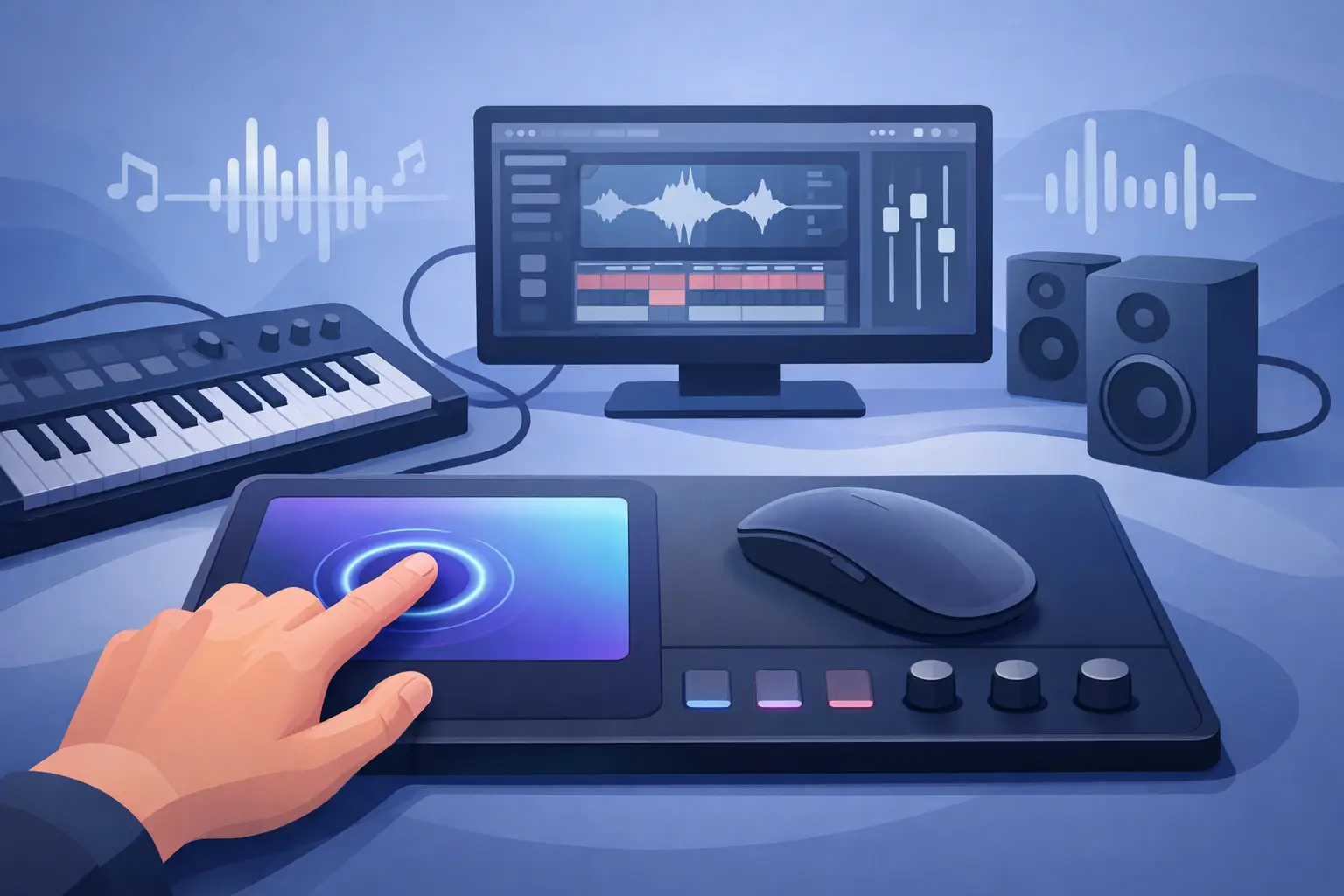
A MIDI mouse pad controller changes a small but stubborn desktop problem: your fastest controls are usually on devices placed outside your natural hand position. You reach for a macro pad. You look down for a dial. You add another cable, another light source, another rectangle to the desk.
The better question is not where to put more controls. It is where your hand already is.
A programmable mouse pad surface puts commands beneath the edge of your palm, near the mouse, and inside the movement pattern you repeat for hours. For producers, that can mean transport controls or MIDI triggers. For editors, it can mean cut, ripple delete, and marker placement. For gamers and streamers, it can mean push-to-talk, scene switching, media control, or a reliable in-game action.
The surface stays quiet until you need it. That is the point.
What Is a MIDI Mouse Pad Controller?
A MIDI mouse pad controller is a desk surface that combines a normal mousing area with programmable touch or pressure-sensitive control zones. Those zones can send MIDI messages to music software, or they can be assigned to shortcuts, macros, media commands, and other computer actions, depending on the device and its software support.
MIDI itself is not audio. It is a language of performance instructions. A controller can send a note, adjust a parameter, trigger a clip, or change a value such as volume, filter cutoff, or effect depth. When that control logic moves into a mouse pad, the desk becomes a more direct instrument.
That does not mean every smart mouse pad is automatically a full MIDI controller. Some are designed primarily for keyboard shortcuts and macro commands. Others may offer MIDI mapping, DAW-specific profiles, or integrations through companion software. Check what the device actually outputs before building a production workflow around it.
The category matters because it removes a false choice. You should not have to choose between a clean desk and a fast one.
Control Without Another Device
A traditional MIDI pad controller earns its place because physical triggers are immediate. The trade-off is simple: it consumes space. Add a stream deck, macro keypad, controller, audio interface, and charging dock, and a desk begins to look like a control room built one impulse purchase at a time.
A mouse pad controller takes a different approach. It uses the largest unused interface area on most desks: the surface under the mouse.
This is especially useful for users who work in short, repeated bursts. A video editor might keep playback, marker, and blade actions on nearby zones. A developer could assign build, test, terminal, and screenshot commands. A producer could trigger play, record, metronome, and a few MIDI-mapped performance actions without leaving the mouse.
The benefit is not just speed. It is continuity. Your eyes stay on the timeline, canvas, code editor, game, or arrangement view instead of searching for another peripheral.
Why Pressure Zones Matter
The best version of this idea does not turn the whole pad into a giant touch screen. That would create noise where precision matters most. Mouse movement needs a stable, predictable surface.
Pressure-sensitive zones solve that problem by creating intentional areas for input. A light resting palm should not fire a command. A deliberate press should. Placement matters as much as sensitivity: controls need to sit where the hand can reach without interrupting normal mousing.
A 4 by 4 zone layout, for example, creates 16 programmable positions without adding visible buttons. That is enough capacity for distinct modes while keeping the interface learnable. One mode can handle work shortcuts. Another can handle a game loadout. A third can manage music or streaming controls.
The strongest designs make those zones invisible when inactive. Your desk remains a desk. Your mouse pad remains a mouse pad. The system appears only at the moment of command.
MIDI Mapping for Producers
For music production, a MIDI mouse pad controller is most useful when it complements rather than replaces a keyboard, pad grid, or knob controller. It is not the ideal tool for expressive finger drumming, detailed automation rides, or playing chords with velocity nuance. Dedicated instruments still win there.
It excels at actions that interrupt mouse-based production. Think transport, record enable, clip launch, tap tempo, metronome, undo, and quick effect toggles. These are commands producers use constantly but rarely want to hunt for.
A practical setup starts with a small number of high-frequency assignments. Put play and stop in separate, easy-to-distinguish zones. Keep record away from anything you might press accidentally. Use a second mode for MIDI triggers such as clip launching or effect switching if the controller supports MIDI output.
Do not map every available zone on day one. Dense mapping feels powerful until you cannot remember what lives where. Build around muscle memory. Four commands used fifty times a session are more valuable than sixteen commands used once a week.
Built for More Than MIDI
The phrase MIDI mouse pad controller can sound production-specific, but the underlying idea is broader. The same surface can act as an input layer for nearly any desktop workflow.
Gamers can assign quick actions that do not belong on an already crowded keyboard. Streamers can keep scene, mute, replay, and chat functions close without placing a glowing control deck beside the monitor. Designers can use tool, zoom, export, and canvas commands. Editors can keep their most repetitive timeline actions in reach.
For power users, the real advantage is mode switching. One physical surface can carry different command sets for different contexts. The layout stays fixed. The meaning changes with the task.
That is where KAGE GhostPad takes a clear position: the mouse pad is already part of the workflow, so it should be allowed to participate in it. No extra panel. No visual clutter. Control from the shadows.
What to Look for Before You Buy
Not all smart desk surfaces are built for the same job. A serious mouse pad controller should first be a good mouse pad. If tracking feels inconsistent, the control features become irrelevant. Surface texture, size, edge comfort, and stability still matter.
Then look at configuration. Browser-based setup and plug-and-play behavior reduce friction, particularly on shared machines or locked-down work systems. A controller that requires a heavy background application for every profile change may be fine for a studio desk, but less appealing for a portable or minimalist setup.
Ask how commands are stored and switched. Does the device retain profiles? Can you move between modes quickly? Are mappings tied to a specific app? Is MIDI output native, configurable, or dependent on translation software? These details decide whether the surface becomes part of your system or remains a clever experiment.
Finally, consider feedback. Invisible controls are clean, but they need a way to be learned. Thoughtful zone placement, clear configuration, and sensible default layouts matter more than decorative lighting. Minimalism only works when the interface stays legible.
The Trade-Off Is Intentionality
A hidden control surface is not for everyone. If you need labels, faders, rotary encoders, or constant visual confirmation, dedicated hardware remains the better tool. A producer mixing long automation passes may need physical knobs. A streamer with dozens of scenes may prefer visible buttons.
But for the commands that repeatedly pull your hand away from the mouse, an embedded surface is a sharper answer. It reduces travel. It cuts peripheral sprawl. It keeps the desk focused on the work rather than the equipment.
The next useful desktop interface may not be another device asking for room. It may be the surface already holding your hand.
Leave a Reply