
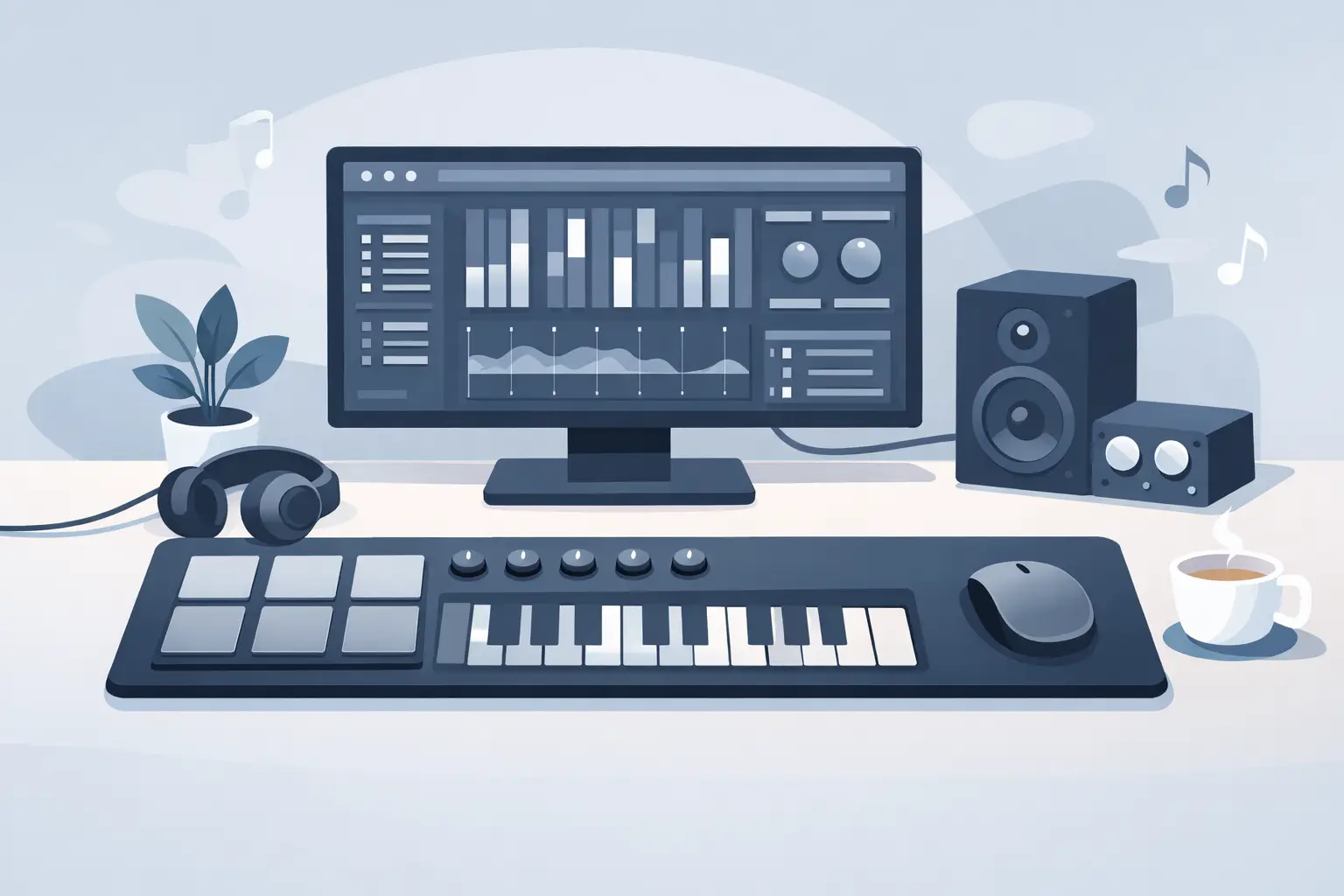
Your desk already has a control surface. It is the space beneath your mouse. A MIDI mousepad controller turns that overlooked surface into programmable input, placing macros, shortcuts, media commands, and application controls where your hand naturally rests.
That changes more than a single command. It changes the shape of the desk. Instead of reaching for a macro pad, searching for a keyboard shortcut, or giving up space to another illuminated device, you can keep control embedded in the workflow itself. The surface stays clean. The commands stay close.
What a MIDI Mousepad Controller Actually Does
A MIDI mousepad controller combines a functional mouse surface with touch or pressure-sensitive zones that send configurable commands to a computer or compatible software. “MIDI” describes the message language commonly used to control music software, effects, virtual instruments, lighting, and other mapped parameters. In practice, the same concept can also support keyboard shortcuts, macros, media keys, and system actions.
The important distinction is physical placement. Traditional MIDI controllers sit beside the keyboard. Macro pads and stream controllers take up their own footprint. A smart mousepad places controls inside an object that already belongs at the center of the setup.
For a producer, one zone might trigger record while another toggles a metronome or switches a mapped effect. For an editor, zones can handle blade tools, markers, playback, and export actions. For a streamer, they can mute a microphone, change a scene, or trigger a sound cue. For a developer, they can launch a terminal command, run a build, or move between frequently used windows.
The controller is not supposed to demand attention. It is supposed to remove a reach.
Why the Mousepad Is the Right Place for Control
Most desktop peripherals solve a real problem by adding a new object. That approach works until the desk starts to feel like a command center built from separate compromises: keyboard, mouse, audio interface, macro pad, controller, charging dock, and cable routes around all of them.
A mousepad is different because it is already present. It occupies a fixed, familiar position. Your hand returns to it hundreds of times during a long session. Adding control there can preserve movement and reduce interruption without forcing a new posture or a new visual layer onto the desk.
This matters most in tasks that alternate between mouse precision and repeat commands. Editing a timeline, painting in a design application, navigating a game, arranging clips in a DAW, or working across browser tabs all involve moments where the mouse hand is active but the keyboard shortcut is not immediate. A nearby pressure zone can make that transition shorter.
There is a trade-off. Controls inside a mousepad cannot be treated like a dense keyboard. If too many functions are packed into one area, accidental input and memorization become problems. The best layouts use deliberate zones, logical grouping, and commands that save a meaningful amount of friction. Less mapping is often better mapping.
Pressure Zones Keep the Interface Invisible
A well-designed smart desk surface does not need rows of visible buttons. Pressure-sensitive zones can remain hidden until muscle memory takes over. The desk still reads as a desk. The mousepad still works as a mousepad. The control layer appears only when you use it.
That invisible approach has practical benefits. There are no exposed switches to catch dust, no bright labels competing with a focused setup, and no need to move your mouse around a raised button grid. It also allows the surface to work across different contexts. A clean 4 by 4 arrangement, for example, can provide 16 distinct zones without turning the pad into a miniature keyboard.
Visual silence is not a cosmetic extra. For people who spend hours at a screen, every additional object adds cognitive noise. A control surface built into the desk can feel more intentional because it keeps capability close while keeping hardware out of view.
Build Modes Around Work, Not Applications
The strongest setup does not map every possible command. It maps the actions that interrupt your flow most often.
Start by observing one real session. Notice when you lift your mouse hand, hunt for a key, reach toward another controller, or stop because a command is buried in a menu. Those are candidates for a pressure zone. The goal is not to create more input. The goal is to remove the input that breaks momentum.
A gamer may want one mode for push-to-talk, map, inventory, and a utility action. A creator may use another for play, pause, marker, undo, and tool switching. A music producer may prefer transport controls, track arming, and parameter changes. Mode switching lets the same physical grid change roles without adding hardware.
Context matters. A command that is perfect for editing may be distracting during general browsing. A layout that works for a competitive game may be too aggressive for design work. Separate modes keep the interface specific instead of overloaded.
MIDI Control Is About Expression as Well as Shortcuts
Keyboard macros are binary. A key is pressed or it is not. MIDI can go further, depending on the software and the type of sensing available. It can carry note messages, control changes, velocity, and mapped values that music tools understand directly.
For producers and performers, that means a desk surface can become part of the creative instrument layer. A zone can trigger a sample, start recording, toggle an effect, or send a mapped MIDI instruction to a virtual instrument. The right mapping can reduce the gap between an idea and the action that captures it.
Still, MIDI is not automatically the best option for every task. Many desktop applications are built around keyboard shortcuts, and some streaming or productivity tools expect hotkeys or direct integrations rather than MIDI messages. A flexible controller should fit the command system you already use, whether that is MIDI, macros, media controls, or a mixture of all three.
No Drivers Is a Real Design Decision
Peripheral software can become its own maintenance job. Background processes consume resources. Updates change behavior. Profiles disappear when moving between machines. For a device meant to simplify a workspace, a complicated setup process defeats the point.
Browser-based configuration and plug-and-play operation change the experience. Assign commands, save a layout, and return to work. No installation ritual. No permanent software layer competing for attention.
That does not mean every user needs the same level of simplicity. Power users may want deep profiles, detailed macros, and application-specific modes. Others want four dependable commands that work every time. Good hardware supports both positions: quick to begin, capable when needed.
KAGE GhostPad is built around that principle. Its prototype uses a hidden 4 by 4 grid of 16 pressure-sensitive zones with browser-based configuration and mode switching. It treats the mousepad as an active interface, not another accessory waiting at the edge of the desk.
Where a Smart Mousepad Fits Best
A MIDI mousepad controller makes the most sense for people whose hands spend long stretches on a mouse. That includes video editors cutting footage, designers moving between tools, producers navigating sessions, streamers managing live controls, developers switching contexts, and gamers who want fast actions without another device in reach.
It may be less useful for someone who relies almost entirely on keyboard-driven workflows or prefers physical, labeled buttons with strong tactile feedback. A hidden pressure zone trades visible labels and mechanical click feel for a cleaner desk and faster access from the mouse position. Neither choice is universally better. It depends on how you work.
The question is simple: how often do you leave your mouse to trigger the same few actions? If the answer is dozens of times a day, the surface below your hand has earned a more active role.
The Desk Is Becoming Part of the Interface
The next useful peripheral may not look like a peripheral at all. It may look like the object you already use, refined with a second purpose beneath the surface.
A smart mousepad does not need to announce itself with lights, knobs, or another cable-heavy footprint. Its value is quieter: fewer reaches, fewer distractions, and more control held exactly where work already happens. Build the commands around your real habits, then let the hardware disappear.
Leave a Reply