
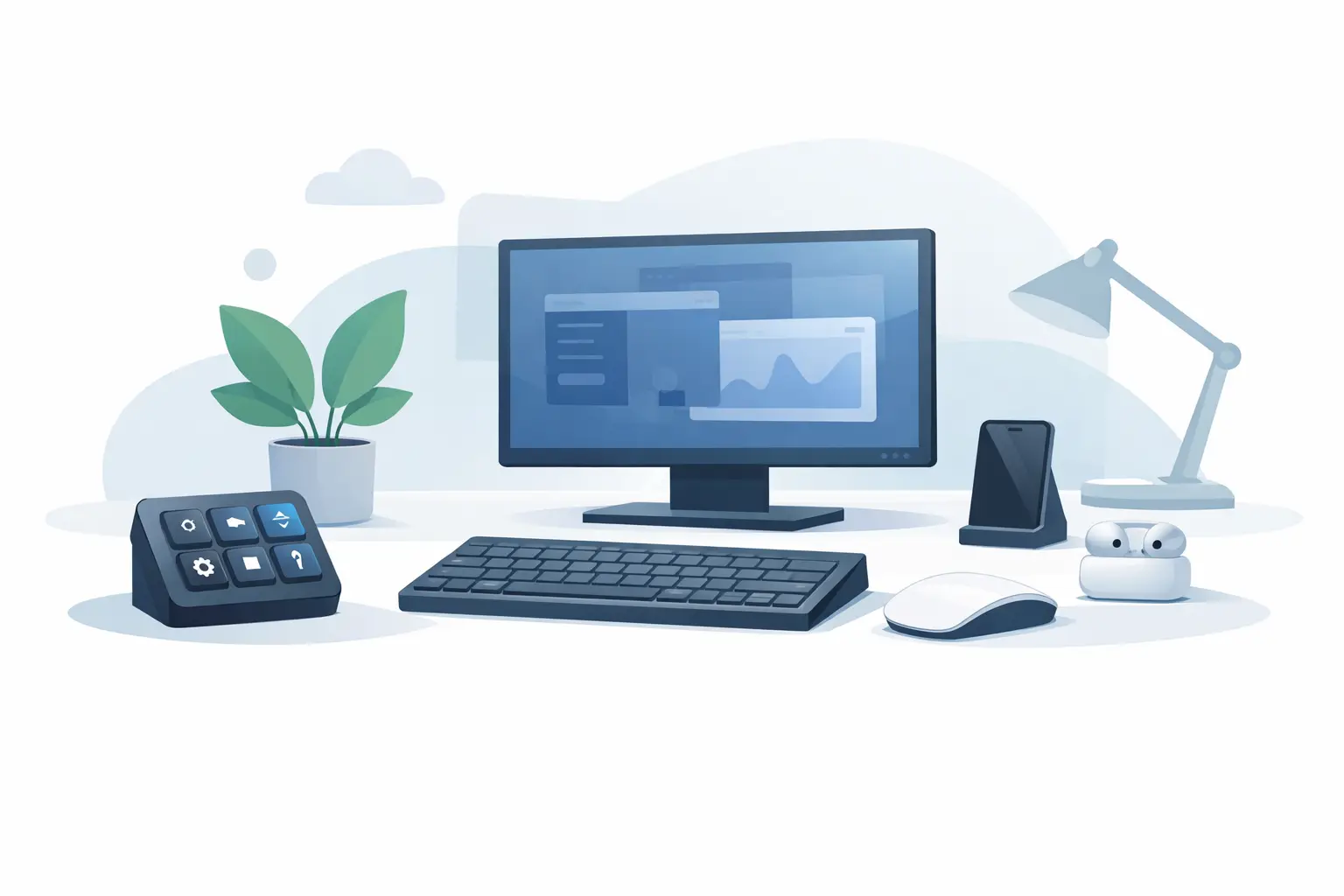
Your shortcut controls should not become another thing to manage. A no software macro device removes the usual friction: no driver hunt, no background app consuming resources, no settings panel demanding attention before your workflow starts.
That distinction matters when your desk is already doing too much. A keyboard, mouse, display, microphone, audio interface, camera, and charging cables can turn a focused setup into a small control room. Adding a macro pad may improve speed, but it often adds another footprint, another cable, and another visual interruption.
The better question is not whether you need more controls. It is where those controls belong.
What a No Software Macro Device Actually Means
The phrase can mean different things, so it is worth separating the useful version from the marketing version. A true no-software macro device works as a standard input device when connected. Your computer recognizes it without a driver install, and its essential actions do not depend on a desktop application running in the background.
For many users, this is the cleanest path. A control can send familiar keyboard shortcuts, media commands, or key combinations that your existing apps already understand. Copy and paste. Mute a call. Start recording. Switch tools. Trigger a game action. The device becomes part of your input system rather than another software ecosystem.
Configuration may still exist. That is not a contradiction. The difference is where and how it happens. A browser-based configurator, onboard memory, or a simple local setup page can let you assign commands without installing persistent software. Set it once, save the profile, and return to your work.
No drivers. No installs. No control center sitting in your taskbar.
The Real Benefit Is Continuity
Macros save time, but the strongest benefit is not measured in seconds. It is measured in interruptions avoided.
An editor who reaches across the desk to trim a clip breaks hand position. A streamer who searches for a control during a live moment loses momentum. A developer who repeats a command sequence dozens of times per day keeps switching between thought and interface. These are small disruptions, but they accumulate.
A good macro device keeps common actions close to the mouse and keyboard, with triggers that are easy to locate without looking down. The best version does not ask you to rearrange your muscle memory around a new object. It works inside the space your hand already occupies.
That is why the desk surface is such an interesting place for control. The mousepad has always been present. It supports motion but contributes nothing to the command layer of the desk. Add pressure-sensitive zones beneath that surface and it becomes an active interface without becoming a visible control panel.
A Control Surface That Does Not Look Like One
Physical macro pads have a clear advantage: every button is visible. For users who need labels, tactile keys, or a large bank of dedicated controls, that visibility can be useful. Live production, complex audio routing, and applications with constantly changing commands may still justify a separate pad.
But visibility is also the cost. More buttons mean more hardware, more cable management, and more visual noise. A no software macro device built into a desk mat takes a different approach. The controls remain available while the desk stays visually quiet.
KAGE GhostPad is designed around this idea: a 4 by 4 grid of invisible pressure zones inside the mousepad. Each zone can act as a shortcut, macro, media control, or workflow command, while the surface remains a clean, usable desk mat. Your mousepad is now a control surface.
That placement changes the interaction. Instead of moving your hand to a device, you make a short, intentional press where your hand already rests. It is less about adding controls than reducing the distance between intent and action.
Browser Setup Is Not the Same as Software Dependence
Some buyers hear no software and assume there is no configuration at all. That is rarely realistic for a programmable device. Personal shortcuts are personal. A video editor, FPS player, and music producer should not receive the same default layout and call it customization.
The smarter standard is simple: setup should be lightweight, clear, and optional after the first pass. Browser-based configuration is often a strong fit because it avoids a mandatory install. You connect the device, open the configuration interface, assign actions, save them, and close it.
Before buying, check whether profiles are stored on the device itself. Onboard storage means your assignments can stay with the hardware when you move between compatible computers. Also check whether the core controls work without an always-open browser tab or companion app. A no-install claim is useful only if the device remains practical after configuration.
There is a trade-off. Dedicated desktop software can offer deeper integrations, visual dashboards, plug-ins, and app-aware automation. If your work depends on those advanced layers, a software-driven control system may be the right tool. If your priority is fast, dependable input with less overhead, simpler is usually stronger.
Choose Trigger Behavior Before Button Count
Sixteen controls can be more useful than thirty-two if they are placed where you can reach them reliably. Raw button count is an easy specification to compare, but it does not tell you whether a device will fit your hands, desk, or habits.
Start with the actions you repeat most. Keep the list tight. A focused setup might include push-to-talk, mic mute, play and pause, screenshot, undo, redo, tool switching, and a few application-specific commands. A game setup might prioritize map, inventory, melee, ability inputs, or clip capture.
Then consider the trigger itself. Mechanical keys provide distinct feedback and reduce accidental presses. Pressure zones create a flatter, more integrated interface and preserve desk space. Neither is universally better. It depends on whether you need to confirm an action through a physical click or prefer control that stays out of sight until you need it.
For pressure-sensitive surfaces, look for intentional activation. A control zone should respond to a deliberate press, not every time your wrist shifts or your mouse crosses an edge. Zone spacing matters too. The goal is confidence without visual clutter.
Where a Minimal Macro Layer Works Best
A hidden control layer is especially effective when actions are repeated but do not need constant visual reference. It suits workflows with stable habits.
For creators, that can mean timeline commands, brush changes, marker placement, or exporting. For streamers, it can mean audio controls, scene actions, chat shortcuts, and clip capture. For developers, it can mean terminal commands, code navigation, formatting, and frequently used snippets. For gamers, it can mean utility inputs that should stay close without covering the desk in peripherals.
The common thread is flow. Your primary tools remain your keyboard and mouse. The macro layer supports them from the edges, without demanding center stage.
The Trade-Offs Worth Seeing Clearly
A clean desk is not automatically a better desk. Hidden controls can be harder to learn at first because labels are not staring back at you. The answer is not to assign every possible action. Start with a small set of high-value commands and let muscle memory build around them.
Compatibility also deserves attention. Standard keyboard shortcuts work broadly, but not every application accepts the same inputs or handles macros in the same way. Competitive games may restrict certain automated actions. Workplace IT policies can limit peripherals or browser configuration on managed machines. Always match the device to the rules of the software and environment where you use it.
Finally, consider whether you need portable complexity or permanent simplicity. If you frequently alter layouts, run advanced plug-ins, or control a large live production, a full macro console may be worth its space. If your commands are stable and your setup is intentionally minimal, a no software approach can feel faster because it asks less of you.
Build a Command Layer That Disappears
The best desktop tools do not compete for attention. They reduce the number of decisions between a task and its execution.
Choose controls that support the work you do every day. Put them where your hands can reach them without leaving position. Keep configuration light. Let the visible part of your desk remain calm.
When a shortcut surface becomes part of the surface you already use, control stops looking like more hardware. It simply becomes part of the way you work.
Leave a Reply