
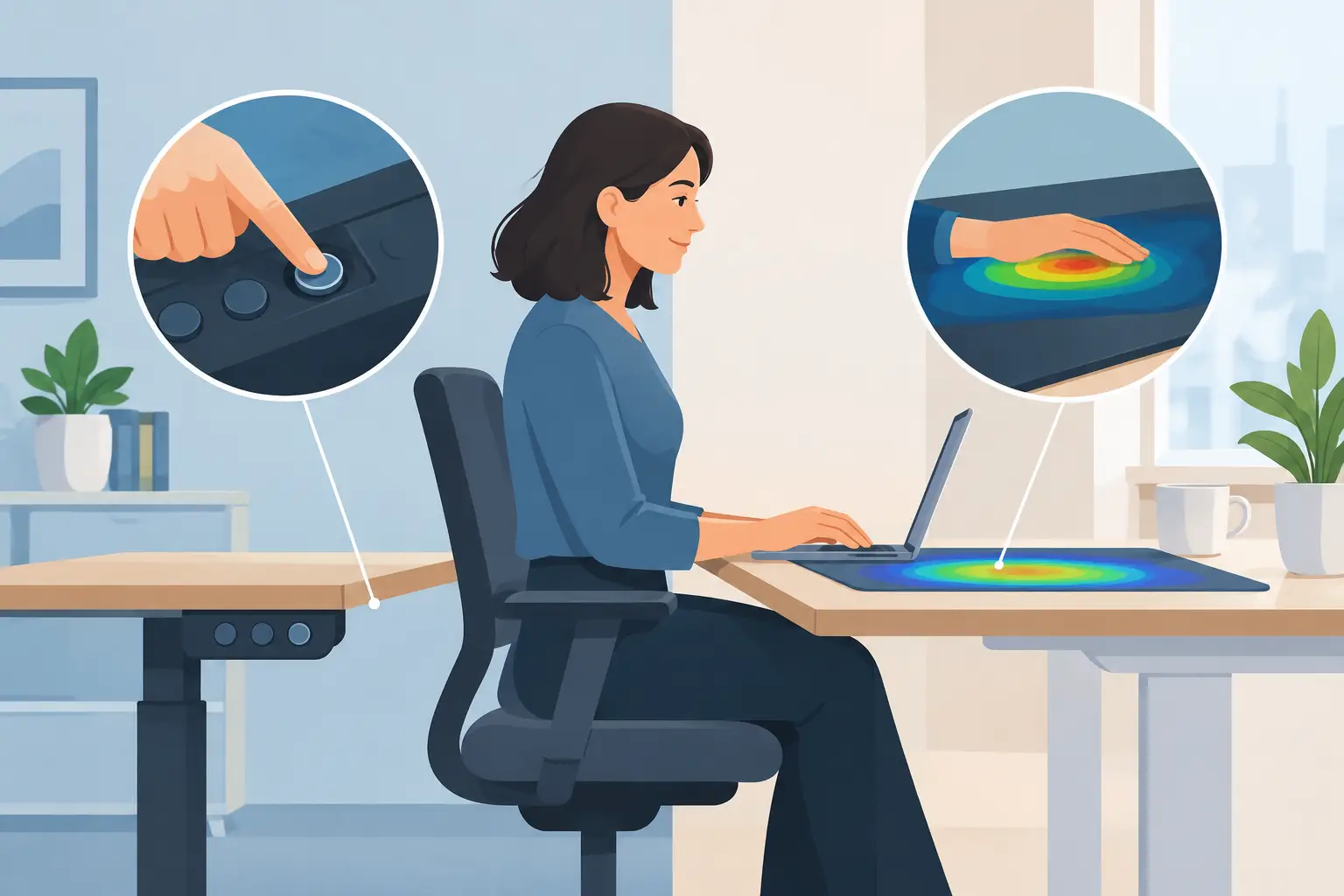
A great desk setup removes interruptions before you notice them. That is the real question behind physical buttons versus pressure zones: do you need another device within reach, or can the surface already under your hand become the control layer?
Physical buttons have earned their place. They are familiar, tactile, and immediate. But every dedicated button panel, macro pad, and media controller also occupies space, adds visual noise, and asks your hand to leave its natural working position. Pressure zones take a different approach. They move the command closer to the moment of intent.
Physical Buttons Versus Pressure Zones: The Core Difference
A physical button is a visible object with a defined location, travel, and click. You press it. It responds. That mechanical certainty is valuable, especially when a command must be deliberate.
A pressure zone is part of a surface rather than a separate object. It recognizes force in a defined area and converts that touch into an action. The interface can remain visually quiet while still being available exactly where your hand already rests.
The distinction is not simply old input versus new input. It is external control versus embedded control. A button asks you to reach for a device. A pressure-sensitive desk surface turns an existing part of your setup into a device.
For users who spend hours gaming, editing, coding, streaming, or producing music, that difference compounds. A small reach may take a fraction of a second, but it also breaks posture, interrupts mouse control, and pulls attention away from the screen. One interruption is nothing. Hundreds in a session are friction.
Why Physical Buttons Still Matter
There is a reason buttons have survived every wave of interface design. You can identify them by touch. They provide a clear actuation point. They are easy to label, easy to explain, and often easier to trust when a command has consequences.
For live production, a dedicated button for mute, scene switching, or recording can be reassuring. For gaming, a keypad with distinct keys may be the right answer for players who need many actions without relying on a keyboard layer. For accessibility, raised controls and strong tactile feedback can be essential rather than optional.
Physical controls also work well when the device needs to be shared. A studio assistant, teammate, or client can understand a labeled button grid in seconds. There is no hidden map to remember.
The trade-off is physical overhead. A macro pad needs desk space. A stream controller needs a cable and a place to live. Multiple tools create multiple visual anchors, and each one competes with the clear, open work area many power users are trying to build.
Where Pressure Zones Change the Setup
Pressure zones are strongest when the goal is fast, repeatable control without adding another object to the desk. The surface becomes a quiet command layer. Press a zone to mute a microphone, skip a track, trigger a shortcut, execute a macro, change a tool, or activate a game action.
The key advantage is proximity. A mousepad is not an accessory you reach toward occasionally. It is already part of your hand position. That makes it an unusually efficient location for secondary commands that support mouse-driven work.
Think about the actions that interrupt flow most often. In an editing timeline, it may be cut, ripple delete, play, or marker placement. In a design app, it may be zoom, brush adjustment, or tool selection. In a development environment, it may be build, run, terminal, or a frequently used code action. The best shortcut is not always the one with the most keys. It is the one you can activate without breaking concentration.
That is the appeal of an embedded interface. It does not demand attention until you need it.
Less hardware is not less control
A clean desk should not mean a stripped-down workflow. It should mean each object earns its position.
Pressure zones let a mousepad carry more responsibility without changing the shape of the workspace. Instead of placing a separate macro device beside your keyboard or monitor, controls can sit beneath or beside the hand that is already navigating the screen. The desk looks calmer because the capability is integrated, not removed.
KAGE GhostPad applies this idea through an invisible 4 by 4 grid of pressure-sensitive zones built into a desk surface. Sixteen programmable areas can be configured in a browser, with no install required. The point is not to turn a mousepad into a noisy control deck. The point is to make useful commands available without making them visible all the time.
The Real Trade-Off: Feedback Versus Flow
The strongest case for physical buttons is feedback. You feel the press. You know where the edge is. On a dedicated keypad, individual keys can have different shapes, textures, or labels. That is hard to replace when you need to operate entirely by touch.
Pressure zones handle feedback differently. Their value comes from position, consistency, and low-profile access. You build muscle memory around areas of the surface rather than around protruding keys. For some users, that feels natural quickly. For others, especially those who depend on exact tactile landmarks, a physical control remains more comfortable.
This is why the right choice depends on the command.
A high-risk action, such as ending a live broadcast or deleting a project element, may deserve a deliberate physical button or a confirmation step. A frequent, reversible action, such as media control, push-to-talk, switching tools, or triggering a standard macro, is an excellent candidate for a pressure zone.
The goal is not to force every input into one format. It is to put each interaction where it makes the most sense.
Pressure Zones Work Best as a System
The most capable setups are built in layers. Your keyboard handles text, primary shortcuts, and commands that benefit from keys. Your mouse handles movement and precision actions. Pressure zones handle secondary commands that should stay close to the mouse hand. Physical devices remain available where distinct tactile feedback or expanded command density matters.
This system-level view avoids the false choice of replacing everything. A pressure-sensitive surface does not need to eliminate a keyboard, game controller, or production console. It can remove the need for the extra device that only exists to hold a handful of commands you use constantly.
Mode switching extends that advantage. The same zone can do one job while gaming and another while editing. It can control music in a general desktop mode, then trigger scene actions during a stream. The physical desk remains unchanged while the control map changes with the task.
That flexibility has one requirement: thoughtful configuration. If every zone has a different function in every application, the system becomes harder to remember than the clutter it was meant to solve. Start with a small set of repeatable actions. Give the zones nearest your resting hand the commands you use most. Expand only when those placements feel automatic.
Who Should Choose Which?
Choose physical buttons when tactile certainty is the priority, when you need a large number of simultaneous labeled controls, or when other people must understand your setup immediately. They remain excellent tools for live control, complex game inputs, and environments where a press must be unmistakable.
Choose pressure zones when your priority is a cleaner desk, less reaching, and faster access to a focused set of repeated commands. They are especially well suited to mouse-heavy workflows where the hand is already stationed on the desk surface for long periods.
For many creators and power users, the answer is not a total replacement. It is reduction. Keep the hardware that gives you a clear advantage. Move the recurring, low-friction actions into the surface already doing work beneath your hand.
The best interface does not ask for attention. It waits in the right place, responds at the right moment, and leaves the rest of your desk clear for the work.
Leave a Reply