
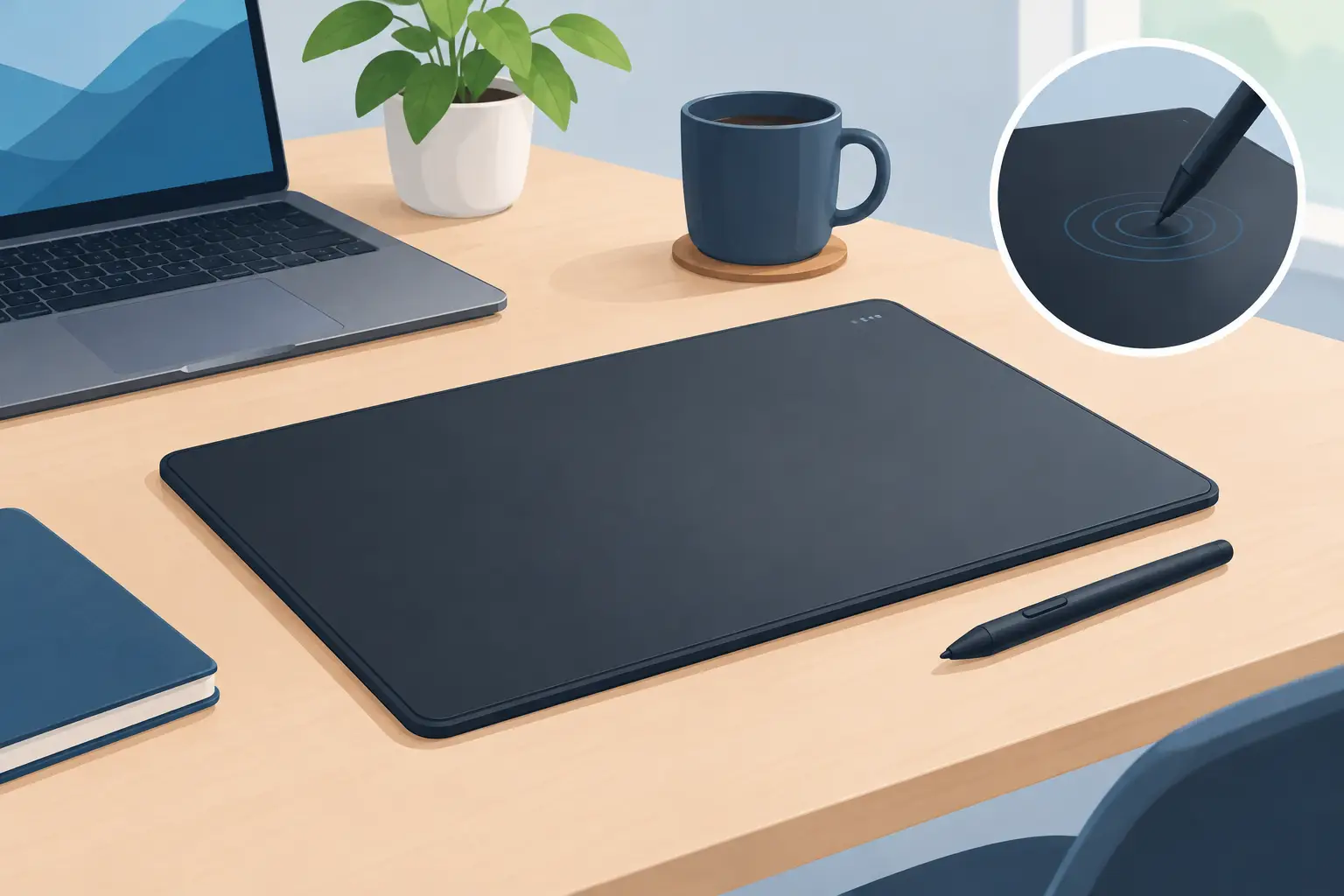
A pressure input desk pad review needs to answer one question before anything else: does putting controls under your wrist make work and play faster, or does it create a new way to misfire? GhostPad makes a convincing case for the first outcome. Its premise is unusually clean. The mousepad is already the most consistently occupied space on a desk. Instead of adding a macro pad, control dial, or screen full of icons, it turns that surface into a hidden command layer.
This is not a replacement for a keyboard. It is a way to move a small set of frequent actions closer to the hand that already lives beside the mouse. That distinction matters. The best use case is not “more shortcuts.” It is fewer interruptions.
What a pressure input desk pad changes
GhostPad is a pressure-sensitive desk surface with a 4×4 grid of 16 invisible zones. Press a location on the pad and it can trigger a configured action: a shortcut, macro, media command, game input, or workflow control. The zones do not announce themselves with a bank of physical keys or a miniature display. The interface stays inside the surface.
That restraint is the product’s strongest idea. Most desktop control hardware solves access by demanding space and attention. A macro pad sits beside the keyboard. A stream controller occupies a visible square of desk. Both can be useful, especially when you need labeled controls or dozens of actions. But they also turn a clean setup into a control room.
GhostPad takes the opposite route. Your mousepad is now a control surface. The commands are there when muscle memory needs them and absent when your eyes do not.
For a video editor, that could mean play, pause, cut, ripple delete, and marker commands under the non-mouse hand. For a streamer, it could mean scene changes, mute, and media control without reaching around a microphone arm. For a developer, it could be build, run, terminal, or window-management shortcuts. For a gamer, it can support actions that do not belong comfortably on an already crowded keyboard.
The appeal is physical, not just technical. Less reaching means less broken focus. If an action happens hundreds of times in a session, shaving off a reach can feel more meaningful than adding another feature to a peripheral.
GhostPad review: the design gets the premise right
The product is built around a simple, high-value constraint: do not make the desk busier. That is why an invisible zone layout is more interesting than a conventional button grid. A button grid is clear on day one, but it is always present. GhostPad asks users to learn positions instead.
That creates a trade-off. Hidden inputs are better for visual calm and potentially faster for repeat commands. They are worse for discoverability. You cannot glance down and see what each zone does. If your workflows change constantly, or if you depend on labels to remember a large command set, a display-based controller may still be the better tool.
But a 4×4 grid is a sensible boundary. Sixteen commands are enough to create useful modes without becoming a map you have to study. The value rises when zones are assigned to actions with stable locations and clear frequency: transport controls in one corner, editing actions in another, game utilities along an edge. The layout should feel like a habit, not a menu.
The physical form also matters. A desk mat has to perform as a mouse surface first. No amount of shortcut power saves a product that compromises tracking, glide, or comfort. The concept is promising because it begins with an object users already need. Its success will depend on whether the final pad feels premium during long sessions, including at the wrist edge and across different mouse skates.
Setup without another software problem
GhostPad uses browser-based configuration with plug-and-play behavior. No drivers. No installs. That is exactly the right direction for a product designed to remove friction.
Peripheral software is often where good hardware loses momentum. Background utilities can be heavy, fragmented, and demanding. They create account prompts, updates, conflicts, and yet another app competing for attention. A browser-based configuration path lowers the barrier to testing an idea quickly: connect the pad, map a zone, use it.
It also raises a few practical questions that deserve answers as the product moves toward release. Users will want to know how profiles are stored, how mode switching works in daily use, whether configurations persist across computers, and how reliably the pad behaves across operating systems and professional apps. Those are not glamorous details. They are where a workflow device earns trust.
Mode switching is particularly important. One set of 16 actions can be excellent. Multiple modes can be far more powerful for people who edit, code, stream, and game from the same desk. Yet more modes also increase cognitive load. The strongest implementation will make switching intentional and visible enough to prevent mistakes, while preserving the surface’s low-noise character.
Where pressure zones beat physical buttons
Pressure input is best for commands that are repetitive, low-risk, and easy to confirm on screen. Media controls are an obvious fit. So are push-to-talk, timeline markers, common editing cuts, app switching, and a few utility macros. These are actions where reaching for a separate controller often feels disproportionate to the task.
The system may be especially effective for creators who work with a mouse in one hand and use keyboard shortcuts inconsistently with the other. Not everyone becomes a shortcut purist. Many users know the commands they use most but still rely on interface buttons for the rest. A pressure pad can occupy the useful middle ground between mouse-only behavior and a full programmable keyboard workflow.
Gaming is more conditional. The zones may be useful for menus, emotes, map functions, voice controls, or less time-critical abilities. For competitive play, however, physical keys provide tactile confirmation and can be easier to actuate without accidental input. Pressure zones need careful calibration. They must recognize a deliberate press without triggering when the hand rests, shifts, or adjusts the mouse.
That sensitivity balance is the central technical test. Too firm, and the interaction loses its speed. Too light, and the pad creates anxiety. A user should be able to rest naturally, move the mouse aggressively, and activate a zone only when they mean it.
The limits are part of the decision
GhostPad is not trying to be every controller on a desk. That is a strength, provided buyers understand the boundary. It cannot offer the tactile landmarks of a keypad, the visual feedback of an LCD control deck, or the deep input capacity of a keyboard with dedicated macro rows.
It also asks for a short learning period. The first few days may involve looking down, missing zones, or building new hand habits. That is normal for any spatial interface. The payoff arrives only if the mapped actions are frequent enough to justify the muscle memory.
This means GhostPad is not ideal for someone who wants one device to expose 50 changing commands at a glance. It is better for someone with a handful of high-frequency actions and a strong preference for a controlled desk. Editors with repeatable timelines, streamers with a consistent show flow, designers with recurring tool switches, and developers with familiar run-test-debug loops are the natural audience.
It is also worth treating the current product stage honestly. GhostPad has been publicly tested and has drawn strong early interest, but it is moving from prototype toward a crowdfunded product. Early supporters are backing a compelling interface direction, not buying years of field-proven hardware history. They should pay attention to final material specifications, software support, shipping plans, warranty terms, and production timelines before committing.
Is GhostPad worth watching?
Yes, if your desk has accumulated devices because every workflow improvement has required another box. GhostPad, developed by KAGE, targets that exact problem with unusual discipline. It does not ask users to decorate their setup with more controls. It asks them to use the space already beneath their hand.
The concept will not eliminate keyboards, keypads, or stream controllers for everyone. Nor should it. Visible controls remain better when labels, precision, and command density matter most. But for the actions that interrupt flow precisely because they are simple and repetitive, hidden pressure zones have a real advantage.
The smartest way to judge a pressure input desk pad is to list the five actions that pull your hand away from its normal position every hour. If those actions are stable, frequent, and easy to recognize by feel, a control surface built into your mousepad is not a novelty. It is a cleaner system.
Leave a Reply