
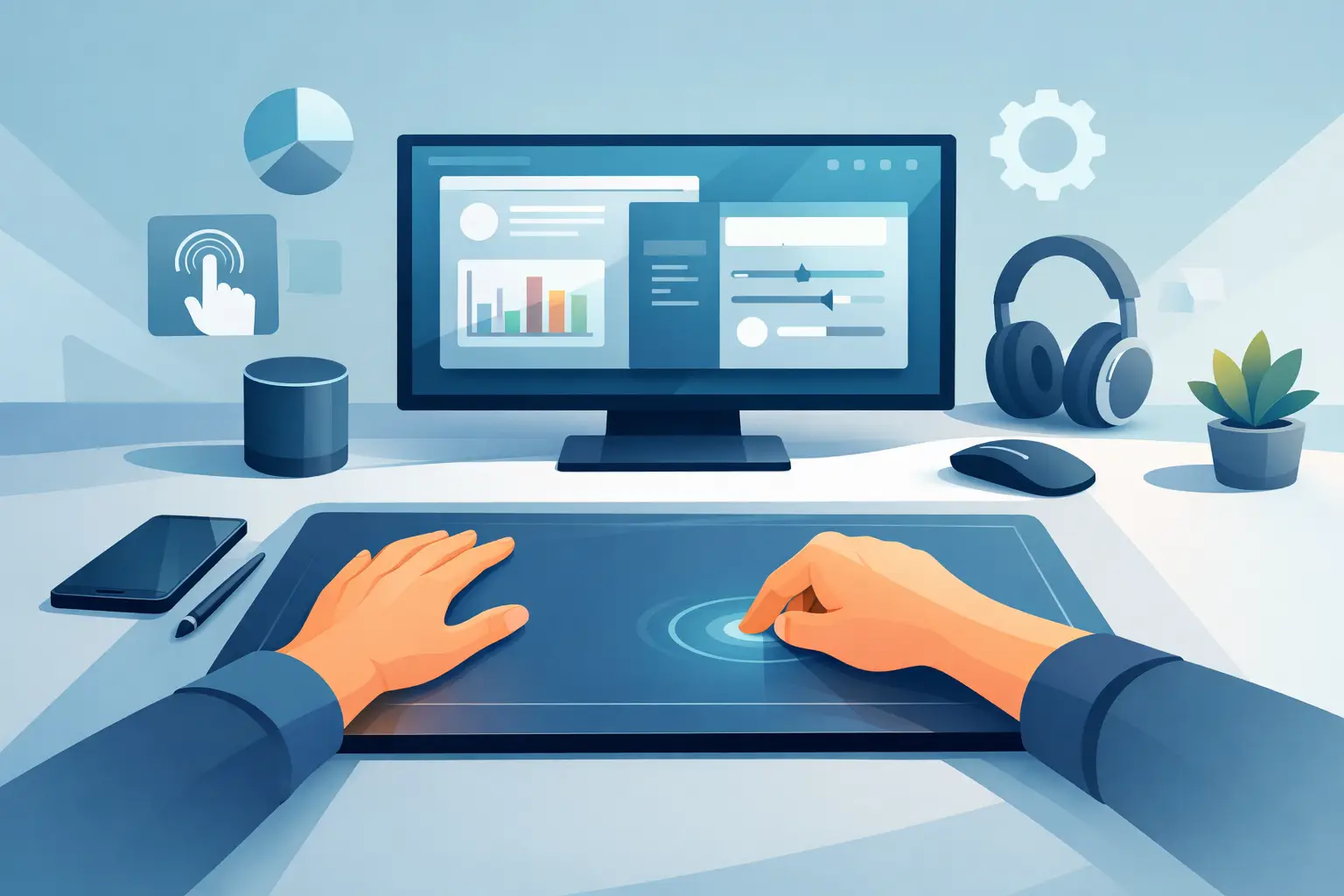
A pressure sensitive desk interface guide starts with one simple question: how often does your hand leave the mouse to reach for another control? For gaming, editing, streaming, coding, or music production, that movement breaks rhythm. A desk interface places commands where your hand already rests.
This is not about adding more gear. It is about making the surface beneath your mouse useful. Invisible pressure zones can trigger shortcuts, macros, media controls, and application-specific actions without placing another lit-up device beside your keyboard.
What a pressure sensitive desk interface changes
A conventional mousepad has one job: provide a consistent surface for mouse movement. A pressure-sensitive desk surface adds a second layer. Press a defined zone and the computer receives a command. The pad remains visually quiet, but the workspace gains a programmable control system.
That distinction matters. Macro pads and stream control panels work well, but they consume space, add cables, and require you to look away from the screen or move to a separate device. A desk interface keeps control close to the mouse hand. The interaction becomes part of the existing workspace rather than another object competing for attention.
The best use case is not replacing every keyboard shortcut. It is removing the actions that interrupt momentum most often: muting a microphone, marking a timeline, switching tools, pausing audio, triggering a push-to-talk command, or launching a repeatable macro.
There is a trade-off. Hidden zones have no physical labels, so they reward intentional layout and muscle memory. If you need dozens of rarely used commands visible at all times, a labeled control panel may still be the better tool. If you repeat a smaller set of high-frequency actions for hours, pressure zones can be faster and cleaner.
Start with the actions that break your flow
Do not begin by mapping every shortcut you know. Start by noticing friction. For one work session, track every action that makes you reach away from your mouse, interrupt a task, or search for a key combination.
Most users find that the real problem is small but repetitive. A video editor may repeatedly cut, ripple delete, and play or pause. A streamer may mute, switch scenes, mark clips, and adjust audio. A developer may run a build, open a terminal, format code, and trigger a test suite. A gamer may want push-to-talk, reload, an ability, or a recording marker available without crowding the keyboard.
Choose actions with three qualities: they happen often, they are easy to trigger incorrectly on a keyboard, and they benefit from staying close to the mouse. Those are the commands that deserve a desk zone.
Avoid assigning a destructive action to a casual press. Closing a project, deleting media, or sending a message should require a deliberate keyboard sequence or confirmation. Pressure interfaces are strongest when mapped to reversible, repeatable actions.
Build around zones, not software menus
A well-designed interface follows the shape of your hand. Instead of organizing commands by the menu where they live, organize them by how often you need them and where your hand naturally lands.
Place your highest-frequency action in the easiest zone to reach without changing grip. Put supporting controls around it. Keep less frequent actions farther from the mouse path. This creates a physical hierarchy: center for immediate response, edges for secondary functions.
A 4 by 4 grid gives you 16 possible commands, but 16 assignments are not always better than eight good ones. Empty zones are useful. They create separation, reduce accidental activation, and make the layout easier to learn.
Think in clusters. A creator might keep playback and timeline controls in one area, audio controls in another, and system commands at the edge. A competitive player might separate communication commands from game actions. The grid should reflect your work, not a generic default.
Pressure sensitive desk interface setup
Configuration should feel direct. Connect the interface, open its browser-based control page, assign commands, and test them in the software you actually use. No driver hunt. No installation chain. No separate app running in the background just to access basic controls.
Before assigning a full set of actions, configure three zones and use them for a day. You will quickly learn whether the zones are close enough, whether a command needs a different location, and whether the pressure response fits your desk habits. Adjusting early is better than forcing yourself to memorize a weak layout.
Set up mode switching only when your workflows truly differ. Modes are useful when the same surface serves distinct contexts, such as editing during the day and gaming at night. One zone layout can then become a production layout, a stream layout, or a game layout.
But modes introduce a new mental step: knowing which layer is active. Keep the number of modes low. Give each one a clear purpose. If a command matters across every task, map it consistently in the same location whenever possible.
KAGE GhostPad applies this model through 16 invisible pressure zones built into the mousepad surface. The premise is precise: your mousepad is now a control surface. The physical object stays minimal while the interaction layer adapts to the task.
Test for accidental presses
Pressure-based input should disappear into your habits, not create fresh friction. During your first sessions, watch for unintended commands when you reposition your mouse, rest your hand, or lean into the desk.
If accidental presses occur, move that action farther from your normal resting area or replace it with a lower-risk command. Layout matters more than filling every zone. An unused zone costs nothing. A misplaced mute control can cost a live stream.
Also consider your desk posture. A user who anchors their wrist near the lower edge will want a different map than someone who moves across a large pad with an arm-based aim style. There is no universal perfect grid. The right arrangement follows the way you actually work.
Practical layouts for different PC workflows
For video and design work, prioritize actions that keep your eyes on the canvas or timeline. Play and pause, cut, undo, redo, zoom, and marker placement are usually better candidates than obscure menu commands. Put undo in a protected but reachable position, because it is frequent and low risk.
For streaming, use zones for the moments where speed matters and visual attention is already split: microphone mute, scene advance, clip marker, chat action, and audio control. Avoid placing stream-ending commands in an easy-to-hit area. Live control should feel calm under pressure.
For developers, focus on repeated execution. Build, test, run, terminal, format, and search can reduce the constant hand travel between mouse and keyboard. The value is not fewer keystrokes in isolation. It is less context switching during a debugging loop.
For gaming, restraint matters. Map commands that are useful but awkward on the keyboard, especially communication and capture actions. Competitive games may punish accidental input, while slower strategy or simulation titles can benefit from broader macro layouts. It depends on the game, your keybinds, and how much room your mouse movement requires.
Keep the desk quiet
The appeal of a pressure-sensitive interface is architectural. It moves functionality into an object already present on the desk. No extra footprint. No additional screen. No row of glowing keys asking for attention.
That does not mean every peripheral should disappear. A dedicated keypad can still make sense for complex production environments, accessibility needs, or workflows with a large number of visible controls. The smarter question is whether each device earns its space.
Use the desk interface for immediate, repeatable commands near the mouse. Keep the keyboard for language, precision input, and deeper shortcut systems. Keep specialized hardware only where tactile feedback, labels, or dedicated controls provide a real advantage.
The result is a desk that feels less like a collection of accessories and more like one coordinated system. Your next useful command should not require another device. It should be waiting under your hand.
Leave a Reply