
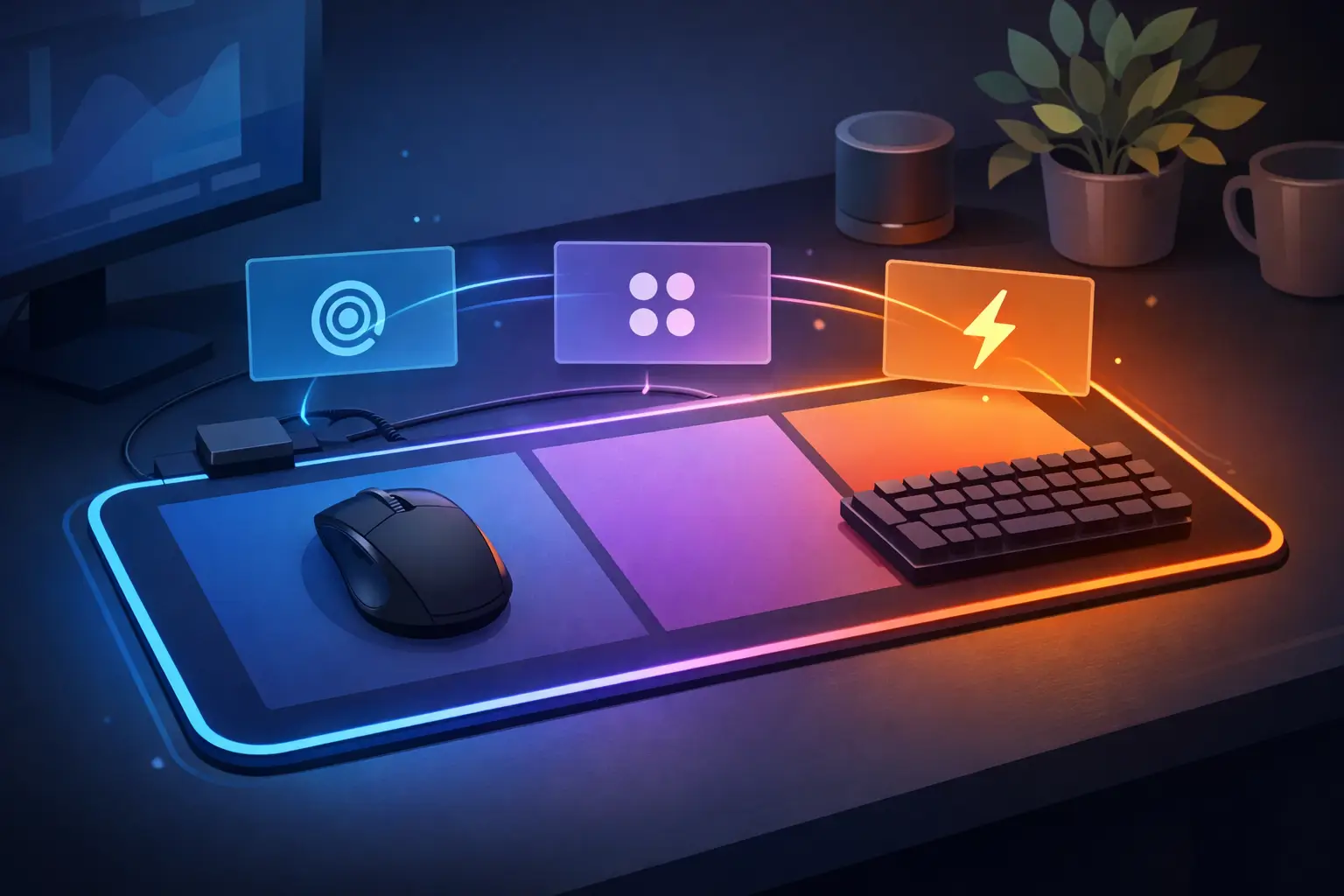
Your mouse already lives in the center of your work. Your hand returns to the pad hundreds of times a day. Yet most mousepads remain passive: good for glide, useless for control. Programmable mouse pad zones change that equation by placing commands directly beneath the hand that is already moving your cursor.
This is not another glowing box competing for desk space. It is a different way to think about input. The surface under your mouse becomes a quiet layer of control: invisible when you do not need it, immediate when you do.
The mousepad becomes part of the system
A programmable zone is a defined area on a desk mat that recognizes a press and sends an assigned command to your computer. One zone might mute a microphone. Another might trigger a keyboard shortcut, switch an editing tool, start a scene, skip a track, or fire an in-game action.
The value is not the novelty of pressing a mousepad. It is position. Traditional control devices ask you to reach away from the mouse, find the right key, then return to your working position. That small movement interrupts rhythm more often than people realize.
Put the command where the hand already rests, and the action becomes part of the motion. Press. Release. Continue.
That matters when a timeline is moving, a match is live, a build is running, or a client is waiting on the other side of a call.
Why programmable mouse pad zones feel faster
Speed is not only about how quickly a command executes. It is about how little physical and mental friction happens before the command.
A macro pad can be useful. So can a Stream Deck, a MIDI controller, or a dedicated media dial. But each device creates a second destination for your hand and another object for your desk. For some setups, that trade-off is worth it. For others, it is exactly the clutter they are trying to remove.
Programmable mouse pad zones take a different route. They preserve the familiar mouse-and-keyboard setup while adding a hidden command layer. The controls are close enough to become muscle memory, but quiet enough to leave the desk visually intact.
There is also a practical benefit to invisible zones: they do not ask for constant visual attention. Physical keys have labels, screens, icons, and lighting because you need to locate them. A pressure zone can be mapped around your own habits. The lower left can always be push-to-talk. The upper edge can always be media control. Repetition builds confidence.
Control without another peripheral
The best desk setups are not necessarily the ones with the most gear. They are the ones where every object earns its footprint.
A smart desk surface works because it starts with an object that already belongs there. The mousepad has a fixed role, a fixed position, and constant contact with the user. Adding intelligence to that surface is a system-level decision, not an accessory pile-on.
For a streamer, the zones can handle mic mute, scene changes, clip markers, and playback controls without placing another panel beside the keyboard. For a video editor, they can call frequently used timeline actions, tool selections, or export commands. For a developer, they can run a test command, trigger a build, open a terminal shortcut, or control focus timers. Gamers can reserve zones for push-to-talk, map functions, or actions that would otherwise stretch an already crowded keyboard layout.
The exact assignments depend on the person. The principle stays the same: keep high-frequency commands close, and move low-frequency commands out of the way.
The 4×4 grid makes sense
A 4×4 layout provides 16 programmable zones. That is enough control to create meaningful workflows without turning a desk mat into a puzzle.
Sixteen is also a useful constraint. If every possible action gets a zone, the surface becomes harder to remember. The strongest profiles focus on repeat actions that break concentration: commands you use several times per hour, not once per month.
Start with four zones. Give each one a clear job. Use them for actions that currently force a reach, a key combination, or a search through software. Add more only after those first assignments feel automatic.
Build profiles around modes, not menus
One surface can serve more than one role. The answer is mode switching.
A gaming mode can prioritize communications and game actions. A work mode can hold browser, media, and productivity shortcuts. An editing mode can be built around the tools and commands used inside a specific creative application. The same physical zone changes function with the active mode, while its location stays familiar.
This is where programmable mouse pad zones become more than a collection of macros. They become a compact control architecture for the way you work.
The trade-off is memory. Modes are powerful, but too many of them can create hesitation. If you cannot remember which mode is active, the benefit disappears. Keep profiles distinct and purpose-built. A good rule is to use modes only when the task context has clearly changed, such as moving from work to a game or from editing to a live stream.
Configuration should stay out of the way
A programmable surface should not demand a maintenance routine. If changing a shortcut requires a long install process, an account login, or a heavy desktop application, experimentation becomes work.
Browser-based configuration changes the expectation. Assign a key command, macro, or media action. Save the profile. Get back to what you were doing. No drivers. No installs.
That approach matters especially for users who move between machines, use managed work computers, or simply refuse to fill their system tray with peripheral software. Plug-and-play behavior keeps the hardware focused on its job: provide input, then disappear into the setup.
KAGE GhostPad is built around this direction, pairing a pressure-sensitive 4×4 control grid with browser-based configuration and a clean desk-mat form. The point is not to make the mousepad louder. The point is to make it useful without changing the visual language of the desk.
Pressure is deliberate by design
A mousepad is not a touchscreen. That distinction matters.
A touch-sensitive surface can react to every accidental brush, sleeve contact, or repositioning movement. Pressure-sensitive zones ask for intent. The user presses when they want a command and glides when they want to move the mouse.
That deliberate interaction helps prevent false triggers, but pressure calibration and zone placement still matter. A very light activation can feel fast but may lead to mistakes. A firmer threshold reduces accidents but can be tiring if the command is used constantly. The right balance depends on how the surface is used and where the zones sit relative to your mouse path.
Zones placed along the outer edge are often best for commands used occasionally, such as media control or opening an application. Zones closer to the resting area work well for frequent actions, provided they are far enough from normal mouse movement to avoid unintentional presses.
The goal is not to replace the keyboard. Keyboards remain better for typing, dense shortcut sets, and actions that need tactile key-by-key feedback. The smart pad handles a different category: immediate, repeatable commands that benefit from being under the mouse hand.
A cleaner desk can be a better workflow
Desk clutter is not only visual. It creates decisions. Which control does this? Where is the button? Why is there another cable crossing the desk?
Reducing devices does not mean reducing capability. It means consolidating capability into tools that are already present. That is the appeal of an active mousepad: more control, fewer destinations.
For users who care about a clean setup, the surface stays minimal. For users who care about performance, the commands stay close. For users who do both, programmable zones offer a rare compromise between function and restraint.
Start by watching your own hand for one session. Every time it leaves the mouse to reach for a repeated command, write that action down. Those are the first controls worth moving into the surface beneath it.
Leave a Reply