
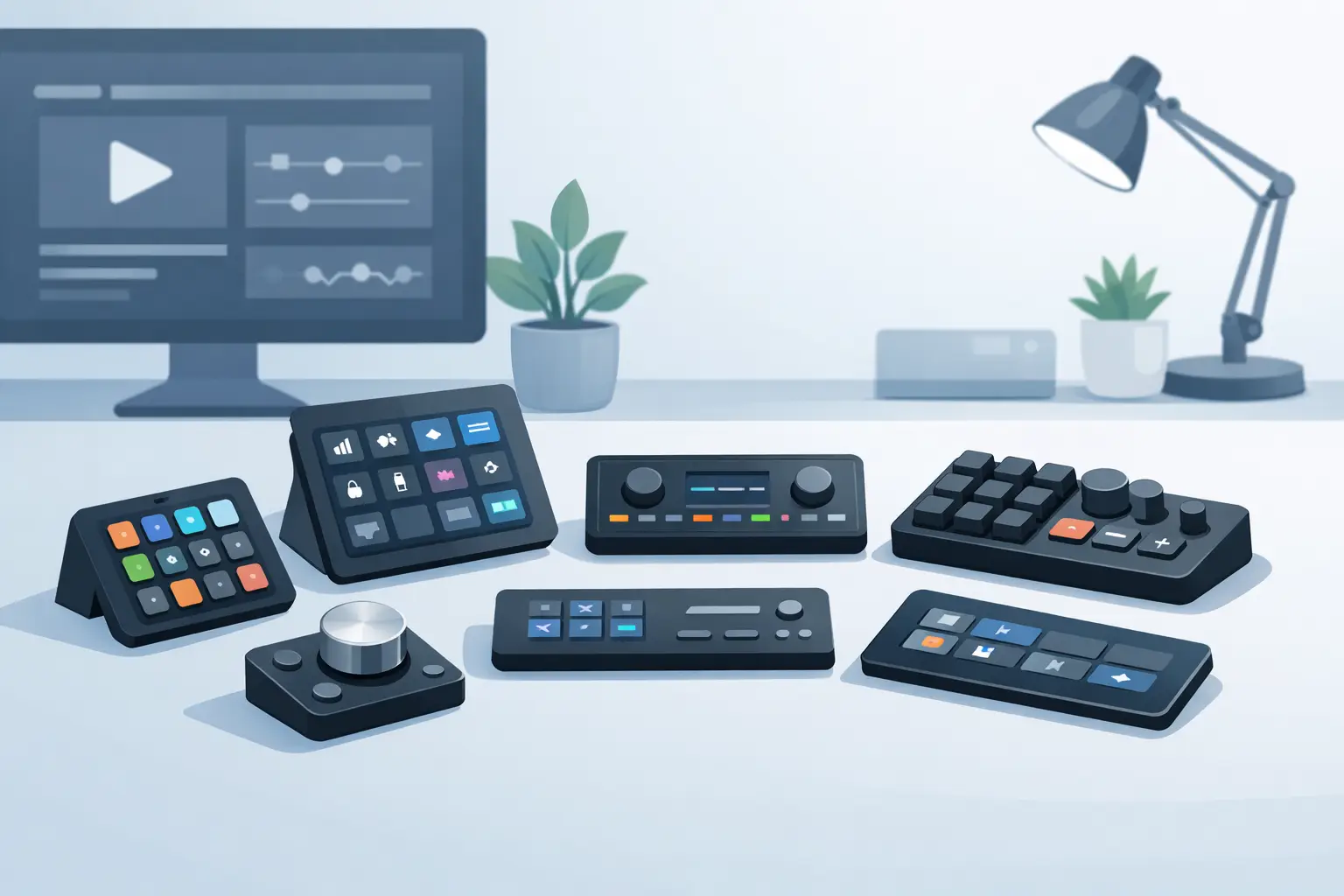
Your desk is already doing too much. A keyboard, mouse, display, mic, interface, charger, and cable stack can turn one extra control device into the thing that breaks the setup. The right stream deck alternative is not simply a cheaper button box. It is a control system that keeps actions fast without making your workspace feel like a cockpit.
For streamers, editors, designers, developers, and serious PC users, the question is simple: where should your shortcuts live? The answer depends on what you trigger, how often you trigger it, and how much physical space you are willing to give up.
What a Stream Deck Alternative Should Solve
A dedicated shortcut panel is useful because it reduces friction. You can change scenes, mute a mic, launch an app, run a macro, or control media without hunting through windows. But a visible grid of buttons is only one approach.
A better alternative should preserve three things: immediate access, dependable input, and a workflow you can remember under pressure. It should also fit the way you work. A streamer may need labeled scene controls. A video editor may need repeatable commands within reach of the mouse. A developer may care more about launching scripts and switching environments than seeing icons.
The trade-off is always physical versus virtual control. Hardware gives you tactile certainty. Software saves desk space. Hybrid systems can do both, but they demand more setup. Choose the system that removes the most repeated movement from your day, not the one with the longest feature list.
1. Keyboard Shortcuts and Layered Macros
The keyboard is the first control surface most people already own. Modern mechanical keyboards often support remapping, macro layers, profiles, and application-specific commands. Even without advanced software, operating system shortcuts and app hotkeys can cover a surprising amount of ground.
This option is fast and free if you already know your commands. It is especially effective for developers, writers, and editors who keep both hands near the keys. The limitation is memory. A keyboard shortcut has no visible label, so complex combinations become difficult to recall when you have twenty actions spread across several apps.
Layered macros solve part of that problem. One key can shift into a second or third command set. That creates density without adding hardware, but it also creates a learning curve. If you need to glance at a control before using it, a keyboard-only system may be too invisible.
2. Software Shortcut Panels
Software control panels put programmable buttons on a second monitor, tablet, or phone. They can handle app launches, media controls, smart-home triggers, streaming actions, and scripts without requiring a dedicated desktop device.
For users with an iPad, an old Android tablet, or a spare display, this is a low-cost path to customizable controls. Icons and labels make uncommon actions easier to find, and profiles can switch with your active application.
The downside is reach. Touching a screen means moving your hand away from the mouse or keyboard. A phone can also be too small for fast live production work, while a tablet stand becomes one more object in the setup. Software panels work best for secondary commands, not the actions you hit every few seconds.
3. Compact Macro Pads
A macro pad is the direct hardware substitute: a small programmable keypad with a handful of mechanical keys. It is simple, tactile, and usually less expensive than a full icon-based control deck.
This is a strong fit if you only need a focused set of commands. Four to twelve keys can cover push-to-talk, mute, record, play or pause, scene switching, screenshot capture, undo, and export. Mechanical switches also provide clear confirmation. You know the input registered because you felt it.
The compromise is capacity and clutter. Macro pads solve the shortcut problem by adding another object, another cable, and another place for dust to collect. They also tend to become static. Once you label the keys for one workflow, changing tasks can mean changing labels, profiles, or your own muscle memory.
4. Mouse Buttons and Gesture Controls
Your mouse is already under your hand. That makes extra mouse buttons one of the most efficient places for high-frequency controls. A well-configured mouse can handle push-to-talk, DPI changes, browser navigation, timeline tools, radial menus, and modifier keys without forcing your hand to travel.
Gesture control takes this further. Hold a button, move in a direction, and trigger a command. It can be extremely fast for users willing to build the habit.
There is a limit. Too many commands on a mouse make it harder to use as a mouse. Accidentally hitting a side button mid-game or mid-edit is frustrating, and complex gestures can fail when precision matters. Keep mouse bindings reserved for actions that benefit from immediate access and can tolerate a compact layout.
5. MIDI Controllers and Knob-Based Gear
For music producers, colorists, and editors, knobs, faders, and dials can be better than buttons. A MIDI controller gives you analog-style adjustment for volume, brush size, timeline scrubbing, exposure, zoom, or effect parameters.
This route offers a different kind of speed. Instead of tapping through incremental values, you can turn a physical control and watch the parameter move. That is valuable when the command is not binary.
But MIDI gear is specialized. It often needs mapping software, profile management, and a permanent place on the desk. For scene changes, app launches, or one-tap macros, it may be more hardware than you need. Use it when continuous adjustment is the job, not as a universal shortcut solution.
6. A Secondary Keyboard or Numpad
An old keyboard, compact keypad, or external numpad can become a dedicated macro station. It is inexpensive, tactile, and familiar. With remapping software, each key can launch a tool, run a shortcut, or trigger a workflow command.
This approach is practical for users who want many physical keys without paying for icon displays. It also works well in fixed workflows, such as editing bays, CAD stations, or production desks where the same commands are repeated every day.
Its weakness is visual feedback. Unless you add labels or memorize the layout, a secondary keyboard is just a grid of anonymous keys. It also occupies more space than a small macro pad while offering less flexibility than a display-based control device.
7. Smart Desk Surfaces
The most interesting stream deck alternative removes the extra device entirely. Instead of placing controls beside your mousepad, it places them inside the surface where your hand already rests.
A pressure-sensitive desk surface can turn specific zones into shortcuts, macros, media controls, game actions, or workflow commands. The advantage is positional. Your hand stays near the mouse. Your desk stays visually quiet. The controls are present when needed and absent when they are not.
This is not the best choice for every task. Invisible zones require a layout you can learn, and users who need constant visual labels for dozens of commands may prefer a screen-based panel. But for repeated actions with a stable muscle-memory pattern, the format makes sense. It treats the desktop as an interface rather than a storage area for peripherals.
KAGE GhostPad follows this direction with a 4×4 grid of pressure-sensitive zones embedded in a mousepad-sized surface. Browser-based configuration and mode switching keep the system focused on one idea: command from the shadows, without adding another visible control panel.
Choose Based on Movement, Not Marketing
Start by watching your hands for one work session. Notice every time you reach for a control, break focus to find a command, or move an object to make space for another object. Those are the moments worth redesigning.
If your commands are occasional and varied, a software panel may be enough. If they are frequent and binary, a compact macro pad or mapped mouse button is hard to beat. If you adjust creative parameters continuously, knobs and faders earn their footprint. If your priority is a clean desk with fast access near the mouse, an integrated surface is the more deliberate move.
The best control system is not the one with the most buttons. It is the one that disappears from your attention while keeping your next command exactly where your hand expects it.
Leave a Reply