
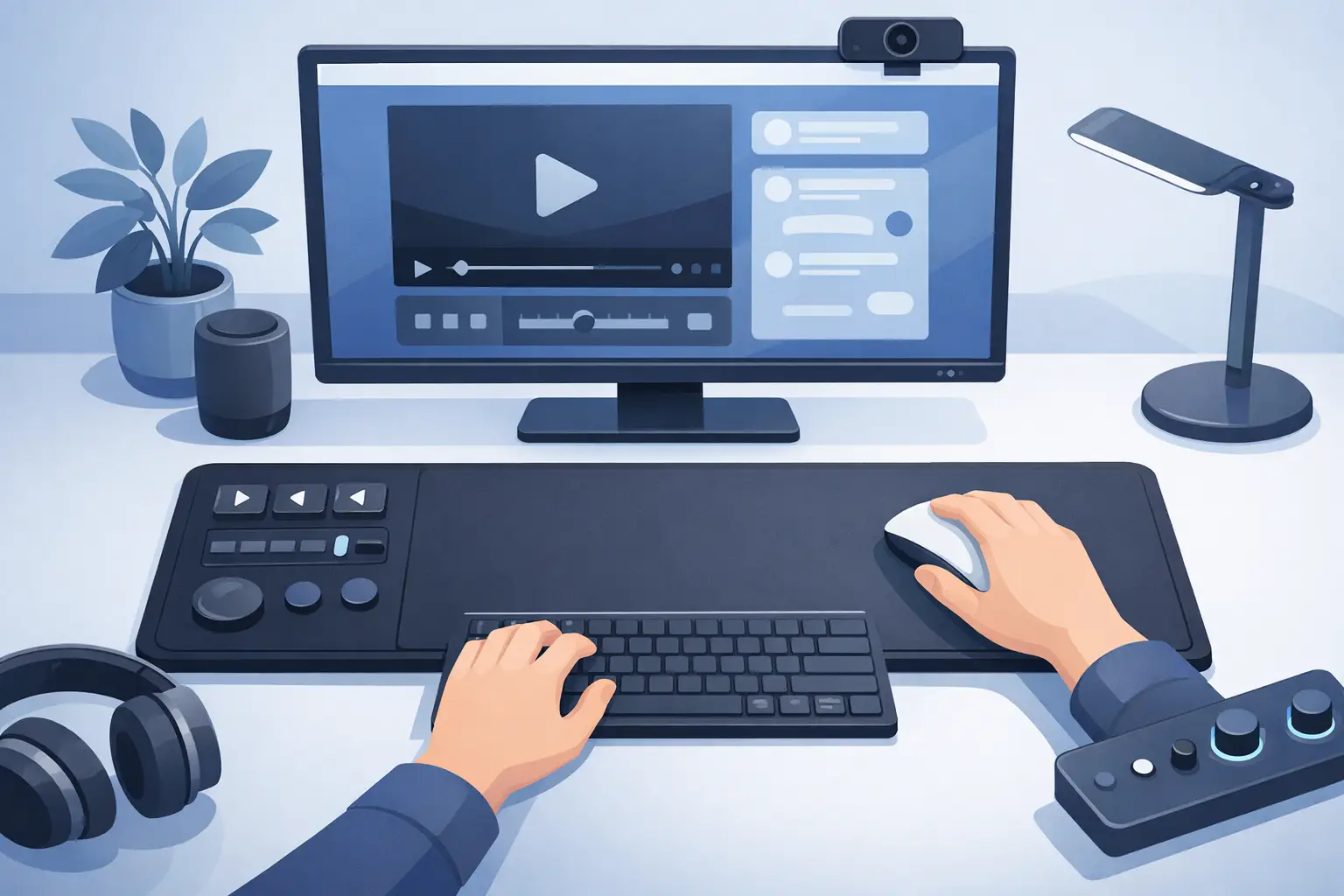
A streaming control mousepad changes one small but constant part of a live setup: the space beneath your hand. Instead of reaching past your mouse for a macro pad, a stream controller, or a row of media buttons, the control layer lives in the surface you already use. Your desk stays quieter. Your attention stays on the stream.
For creators who switch scenes, manage audio, trigger clips, mute a mic, or mark a moment while playing, that placement matters. Streaming is built from fast decisions. Every extra reach is a break in rhythm.
The Problem With More Streaming Gear
A capable streaming desk often grows one device at a time. A keyboard adds shortcuts. A controller adds scene switching. An audio interface adds knobs. A second control pad appears for clips, chat commands, or lighting. Each tool may solve a real problem. Together, they compete for space, cables, USB ports, and attention.
The issue is not that physical controls are bad. Tactile input is often faster than hunting through software windows. The issue is where those controls live. A separate device needs a separate footprint, and its location may force your hand away from the mouse at exactly the wrong moment.
That friction is easy to ignore until a stream gets busy. You are playing, talking, reading chat, monitoring a recording, and managing a scene transition. Then the smallest movement becomes visible. A missed button press can mean an open mic, a delayed replay, or a scene change that arrives after the moment has passed.
A better system does not simply add more commands. It puts the right commands closer to the action.
What a Streaming Control Mousepad Actually Does
A streaming control mousepad is a programmable desk surface with pressure-sensitive zones built into the pad. Those zones can be assigned to actions such as scene changes, media controls, microphone mute, push-to-talk, sound effects, recording markers, macros, or application shortcuts.
The key distinction is that the controls are integrated rather than attached. The mousepad remains a mousepad first: a surface for tracking, aiming, editing, and navigating. When you need a command, a press in a designated area triggers it.
That creates a different interaction model from a visible button grid. You do not need to look down and scan labels before every input. With consistent placement and repetition, your hand learns the map. Press left for mute. Press upper right for a scene. Press a lower zone for a replay or marker. The command becomes part of your mouse movement instead of an interruption to it.
This is not a replacement for every controller. Streamers who run complex productions with dozens of scene states, audio channels, guests, and live cues may still want dedicated hardware with labeled keys, knobs, and displays. A hidden control surface is strongest when it handles the commands you use constantly, especially the ones that need speed without visual distraction.
Keep Your Mouse Hand in the Loop
The best shortcut is not necessarily the one with the most features. It is the one you can trigger without losing focus.
For a competitive streamer, that might be push-to-talk, mute, a scene switch, or an instant replay marker. For a variety creator, it may be a transition, a camera toggle, a sound cue, or a clip trigger. For someone producing a live tutorial, it can be start and stop recording, browser navigation, media playback, and a shortcut for switching windows.
A pressure-sensitive mousepad is especially useful because it places these actions where your dominant hand already spends hours. The movement is small. Your posture stays stable. Your eyes remain on the game, timeline, chat, or camera preview.
That does require intentional setup. Commands that can damage a live stream should not sit under an area you press accidentally. A stream-end action, for example, belongs behind a deliberate gesture or in a separate mode. The most accessible zones should handle low-risk, high-frequency actions: mute, marker, push-to-talk, scene advance, or media control.
A control layout should follow your actual habits, not a generic template. Start with the commands you reach for during a normal hour of streaming. If a command is used once per session, it may not deserve a prime zone. If you use it every few minutes, it probably does.
Streaming Control Mousepad Layouts That Make Sense
A 16-zone layout offers enough room for serious control without turning the desk into a dashboard. The goal is not to fill every zone on day one. Empty zones are useful. They give the system room to evolve as your format changes.
For a gameplay-focused setup, the upper zones can handle stream-state actions that are less likely to be pressed during intense mouse movement: start recording, switch to a break scene, change camera view, or activate a replay. Zones closer to the lower edge can serve quick audio actions such as mic mute, push-to-talk, game-audio reduction, and media pause.
For editing and content production between streams, the same surface can change roles. One mode can assign zones to timeline cuts, ripple edits, markers, undo, redo, playback, and export shortcuts. Another can control music production commands, browser tabs, or development tools. The hardware stays in place. The active workflow changes.
Mode switching is where a smart desk surface becomes more than a streaming accessory. It can be a live-control layer at night and a production-control layer the next morning. That flexibility matters for creators who do not separate their setup into neat categories. The same desk often handles gaming, calls, edits, music, admin, and code.
Invisible Controls Need Clear Boundaries
A visible control pad gives you labels. An invisible interface gives you a clean desk. That trade-off needs design discipline.
Pressure zones should be reliable enough to feel deliberate, not vague. They also need enough separation that normal mouse use does not trigger commands. The surface should support a clean visual field while allowing users to build spatial memory. A subtle physical reference point, a consistent grid, or a familiar zone pattern can help without turning the mousepad into a panel covered in icons.
There is also a learning period. A new user may initially glance down or press too cautiously. That is normal. The advantage develops through repetition, much like keyboard shortcuts. Once the layout is learned, the interface can become faster precisely because it disappears from conscious attention.
This is why browser-based configuration and no-install setup matter. A control surface should not demand a long software ritual before it earns a place on the desk. You should be able to assign actions, test a zone, adjust the layout, and get back to work. No drivers. No cluttered utility living in the background just to mute a microphone.
KAGE GhostPad is built around that principle, using an invisible 4 by 4 grid of pressure-sensitive zones to turn a familiar desk surface into a configurable control layer.
Where It Fits Better Than a Stream Deck
A streaming control mousepad is not a universal winner over a dedicated controller. A controller with displays is better when labels change constantly, when you need visual confirmation, or when a production has many actions that cannot be memorized. Physical dials can also be better for gradual adjustments such as mixing levels or color control.
But a mousepad-based interface has a clear advantage when desk space and hand position matter more than visible button feedback. It is for the streamer who wants fewer objects in frame. The gamer who does not want to move their mouse hand to manage a mic. The editor who values shortcuts but refuses to turn a workspace into a control room.
It also makes sense for smaller desks, laptop setups, and dual-purpose workstations. In those environments, every peripheral has to justify its footprint. A surface that already belongs on the desk has an advantage over another rectangle asking for space.
The strongest setup is not the one with the most hardware. It is the one that removes repeated friction without creating new friction somewhere else.
Build a Control Layer, Not a Button Collection
Before assigning commands, watch one recorded stream or work session. Notice every moment you move away from the mouse to do something simple. Those are the first actions worth bringing into the pad.
Keep the first layout small. Four to six commands are enough to test whether the placement feels natural. Use actions with immediate feedback, such as muting the mic or changing a scene, and avoid stacking similar functions beside each other until the positions feel automatic. Once the layout becomes muscle memory, add secondary tools.
The result should feel less like operating hardware and more like extending your hand. That is the real promise of a streaming control mousepad: control that stays close, stays quiet, and leaves the desk ready for the work that matters.
Leave a Reply