
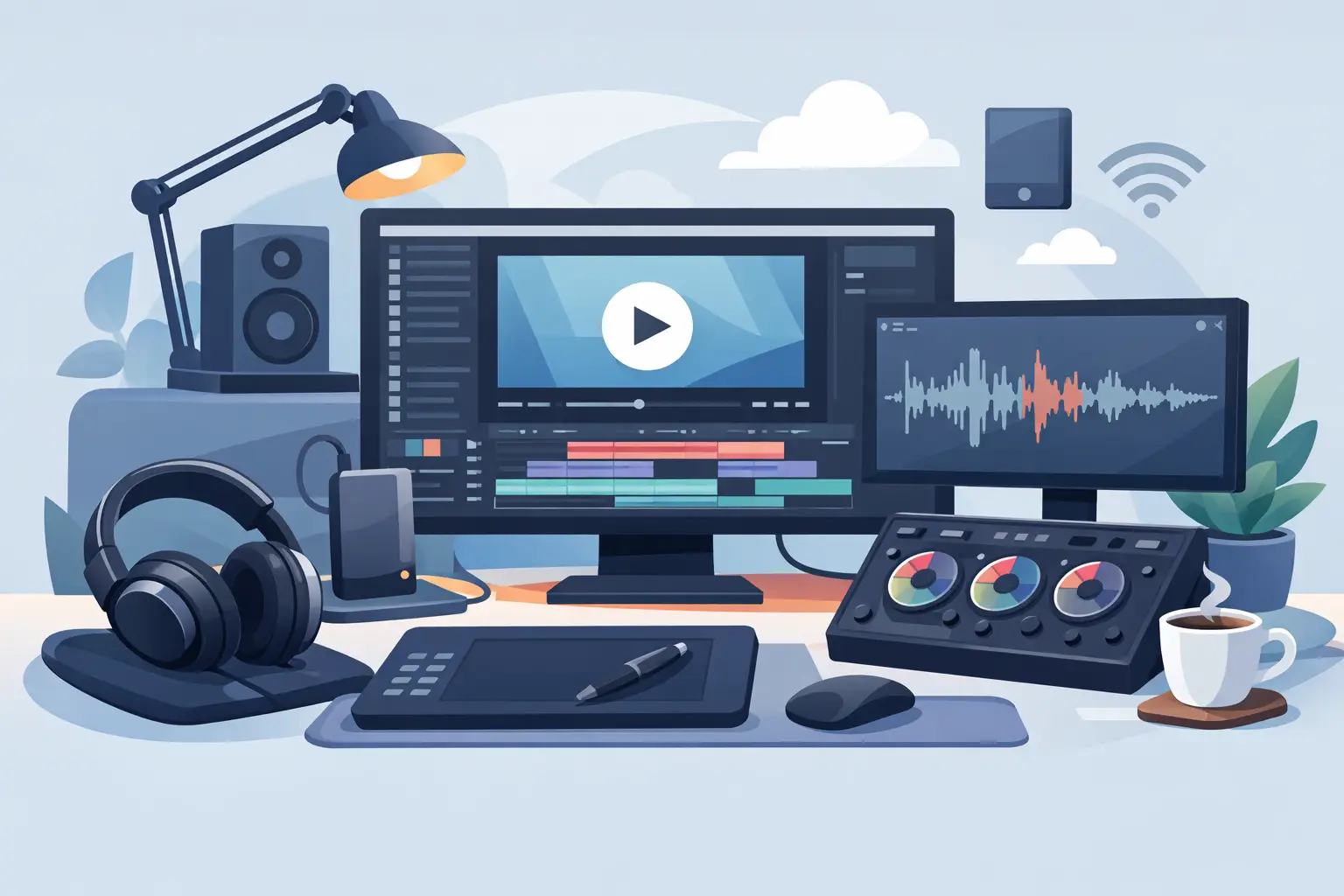
A video timeline does not usually stall because an editor lacks software features. It stalls because the next action is buried behind a menu, a keyboard reach, a device cable, or a desk crowded with gear. The best video editor accessories solve those small interruptions. They keep your hands close, your commands immediate, and your attention on the cut.
The goal is not to build a command center that looks impressive in a setup photo. It is to build a workspace that disappears when the work starts.
Video Editor Accessories Should Remove Friction
Editing is a sequence of decisions made at speed. Mark an in point. Split a clip. Nudge audio. Toggle full screen. Add a marker. Review the same three seconds again. Each action is minor. Reaching away from your mouse or breaking eye contact with the timeline is also minor. Repeated hundreds of times, it becomes drag.
That is why the most useful accessories are not always the most specialized. A device earns desk space when it removes a repeatable movement, improves comfort through a long session, or gives a command a more natural home.
Start with your own bottleneck. A colorist may need precise display control. A short-form editor may need faster trimming and caption review. A creator cutting long interviews may benefit more from audio monitoring, storage, and marker shortcuts than from a large control panel. There is no universal editing desk. There is only the desk that supports the work you do most.
Build Around the Hand Position You Already Use
Your keyboard and mouse remain the center of most desktop editing workflows. Everything else should support that center, not force you to orbit around it.
A quality mouse and a stable desk surface are foundational. This is not about chasing extreme sensor specifications. It is about predictable tracking, enough room for controlled movements, and a surface that stays put while you are working through a detailed mask or a dense timeline. Wrist comfort matters too. A bad surface can turn a six-hour session into a reminder that hardware is part of the workflow.
The next layer is command access. Editors commonly add a macro pad, control dial, shortcut keyboard, or dedicated streaming controller. These can be excellent tools, especially when a workflow has a clear set of repeat actions. But every extra device creates a trade-off: more cables, more visual noise, more configuration, and another object competing for premium space near the keyboard.
For a clean setup, invisible control makes more sense than another illuminated rectangle. KAGE GhostPad approaches this differently, placing programmable pressure zones directly inside the mousepad surface. The prototype uses a 4 by 4 grid of 16 zones, so common commands can sit under the hand already operating the mouse. Cut, ripple delete, marker, playback, mute, or a custom macro can be triggered without reaching for a separate panel. No drivers. No installs.
That approach will not replace every physical controller. Editors who grade with dedicated wheels or mix sound with tactile faders need the precision and feedback those tools provide. But for shortcuts that demand speed rather than fine adjustment, integrated desk control can remove more friction than it adds.
Choose Controls by Frequency, Not Novelty
The mistake is mapping every possible command. A crowded control layout is simply a menu with worse labels. Map the actions you use constantly and the actions that interrupt your rhythm when they are not close.
For most editors, these are transport controls, timeline edits, markers, undo, clip enable or disable, and a few workspace commands. If you work in Premiere Pro, DaVinci Resolve, Final Cut Pro, or another non-linear editor, the exact shortcut names change. The principle does not. Put high-frequency, low-risk commands where your muscle memory can find them.
Separate fast actions from irreversible actions
A pressure zone, macro key, or dial is ideal for a command you can safely repeat. Play and pause. Add marker. Zoom timeline. Toggle snapping. These are fast, forgiving actions.
Be more careful with destructive commands such as deleting clips, overwriting an edit, or exporting. A shortcut that saves one second but creates one accidental cut is not efficient. Keep high-consequence actions on the keyboard, behind confirmation, or in a location that requires a deliberate press.
Use modes only when the context is clear
Layered controls can multiply what a compact accessory can do. One mode for editing, another for review, another for audio cleanup. The risk is confusion. If you cannot remember the active mode without looking, the system has become work.
Modes work best when they follow a clear phase of the job. During a first pass, use controls for playback, markers, and selects. During finishing, switch to review notes, audio toggles, and exports. Keep the layout consistent enough that you do not have to stop and think.
Audio, Displays, and Storage Are Editing Tools
Shortcut control gets attention because it is visible. Three quieter accessories often make a bigger difference over a full project: reliable headphones or speakers, a calibrated display, and fast external storage.
Audio monitoring should fit the room. In an untreated bedroom or apartment, good closed-back headphones can reveal problems that desktop speakers hide. They are especially useful for cleaning dialogue, checking edits, and working late. Open-back headphones can feel more natural over long sessions, but they leak sound and offer less isolation. Studio monitors can be valuable, yet they need reasonable placement and a room that does not distort every low-end decision.
A display is not just a bigger timeline. Resolution, color consistency, and screen real estate affect the way you judge footage and organize the interface. A second screen can help when you need bins, scopes, and a full preview visible at once. It can also scatter your focus if it becomes a place for messages and browser tabs. One well-calibrated main display is often more valuable than two mismatched screens.
Storage is where speed becomes reliability. Editing from a fast external SSD can make proxy generation, cache access, and project movement feel far less constrained. The drive is not a backup, though. Keep project files and media in at least two places, and treat the working drive as one copy in a system. Fast storage helps you work. Redundant storage helps you sleep.
Protect the Desk From Accessory Creep
The modern editor can buy a solution for nearly every task. A dock. A dial. A macro pad. A charging stand. A monitor light. A tablet. A microphone arm. A cable hub. Individually, each one is reasonable. Together, they can turn a focused workspace into a staging area for peripherals.
Before adding anything, ask a direct question: does this tool replace a movement, or does it create another place to reach? If it requires a new cable, a new app, and a new habit for an action you do twice a day, skip it. If it handles a command you perform fifty times an hour, it deserves serious consideration.
Cable management is part of this decision. A clean desk is not only aesthetic. Loose cables catch on mouse movements, make devices harder to reposition, and increase the mental sense that the workstation is unfinished. Route permanent connections under the desk where possible. Keep only the interfaces you actively touch within reach.
This is also why compact tools have an advantage. They preserve usable desk area for notebooks, drives, cameras, or simply room to think. The best setup does not announce how much hardware it owns. It makes editing feel direct.
A Practical Order for Upgrading
If you are building an editing setup from scratch, improve the fundamentals before buying specialized controls. Start with an ergonomic chair position, a dependable mouse, a stable mousepad or desk mat, and audio you can trust. Then address storage and display accuracy. Add programmable control only after you understand which repeated actions are slowing you down.
That order prevents a common trap: buying accessories to compensate for an unclear workflow. Hardware cannot decide where your footage belongs, name your files, or make a weak edit stronger. It can make the decisions you already know how to make feel closer and faster.
The strongest video editing desks are quiet systems. The mouse moves. The hand triggers a command without leaving position. The timeline responds. Nothing flashes for attention. Nothing blocks the work.
Build for that feeling. Then keep only the accessories that preserve it.
Leave a Reply