
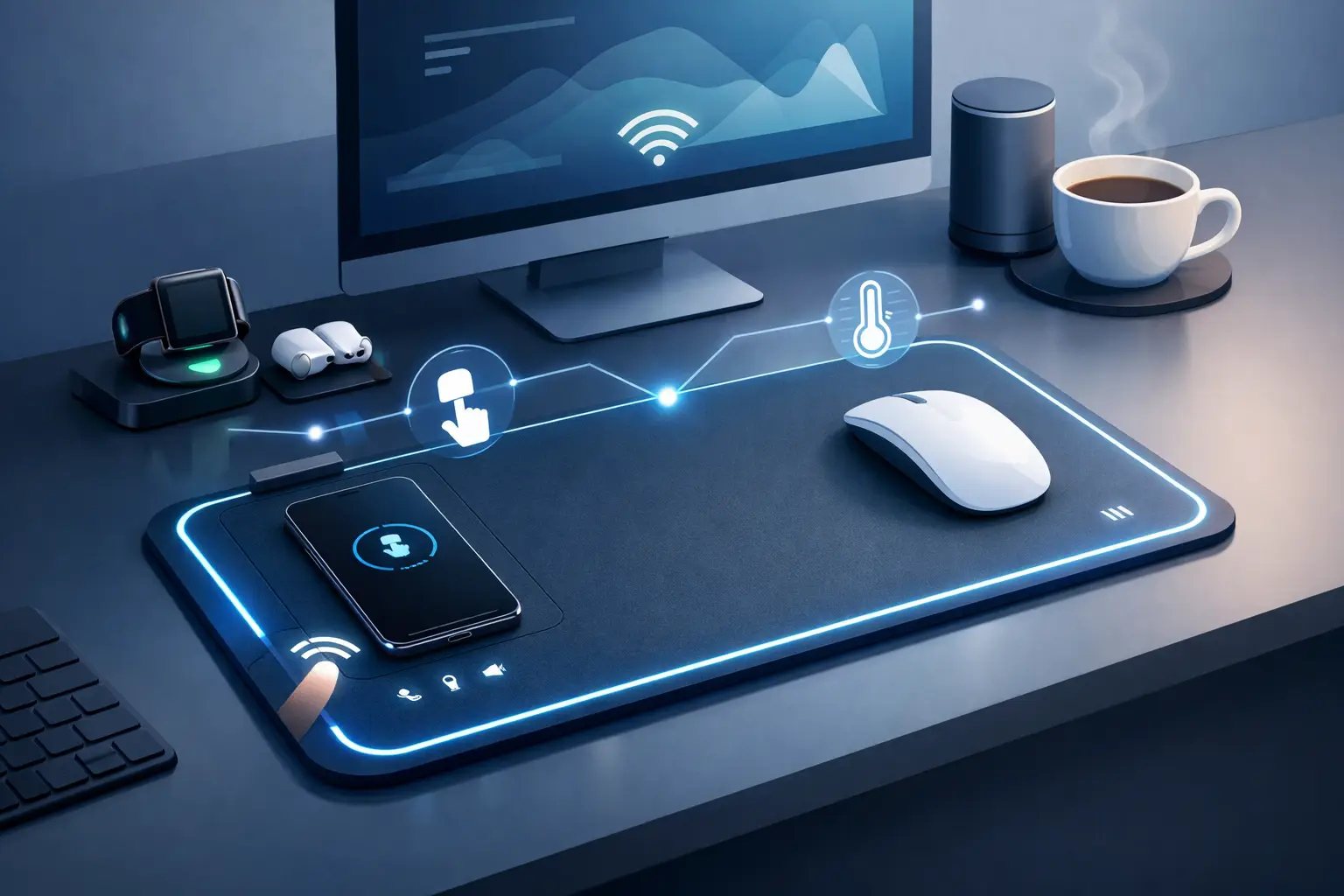
Your mouse hand already occupies the most valuable real estate on your desk. So, what is a smart mousepad? It is a mouse surface with built-in input technology that lets you trigger computer actions from the space beneath or beside your hand. No extra control panel. No new row of buttons competing for attention.
A conventional mousepad has one job: give your mouse a consistent surface. A smart mousepad keeps that job, then adds programmable interaction. Depending on its design, it may use touch sensing, pressure sensing, illuminated controls, wireless charging, or a combination of these features. The most useful versions treat the pad as an active part of your setup, not just an accessory under it.
What Is a Smart Mousepad Designed to Do?
A smart mousepad turns familiar hand movement into commands. You might press a discreet zone to mute your microphone, start a recording, skip a track, switch tools in an editing app, or activate an in-game action. The idea is simple: bring repeated commands closer to the hand that is already moving your mouse.
That distinction matters. A smart mousepad is not automatically a better gaming surface, a trackpad, or a desktop display. Its purpose depends on the product. Some focus on charging. Some add RGB lighting or app-specific overlays. Others operate as configurable control surfaces, hiding shortcuts inside the pad itself.
For power users, the last category changes the desk most. It moves utility into an object that is already required, rather than asking you to make room for another peripheral.
The Interface Hides in Plain Sight
The best desk setups do not feel like a cockpit. They feel intentional. Every device earns its space.
A programmable smart mousepad can replace some of the physical reach associated with macro pads, stream controllers, media remotes, and secondary button boxes. That does not mean those devices are obsolete. A streamer with complex scene management may still want labeled keys and visual feedback. A video editor may prefer a dedicated dial for timeline work. Physical controls can be faster when you need dozens of commands visible at once.
But many daily actions do not need another device. They need a faster path. Muting a call, switching a brush, marking a timeline, pausing music, pasting a frequent response, or changing a game loadout are small actions. Reaching across the desk for each one breaks rhythm.
A smart mousepad puts those actions in the quiet space around your mouse. Your hand stays close to its working position. Your desk stays clear.
How Smart Mousepads Detect Input
The technology inside a smart mousepad determines how it feels to use. Not every approach solves the same problem.
Touch-sensitive surfaces
Touch-sensitive pads detect contact from a finger. They can support gestures such as swipes, taps, and multi-finger actions. This makes them useful for media controls or navigation, though accidental triggers can be a concern when your palm or wrist moves across the surface.
Touch works best when zones are clearly separated from the mousing area or when the system is tuned to ignore unintentional contact.
Pressure-sensitive zones
Pressure sensing responds to a deliberate press rather than simple contact. That makes it a strong fit for hidden controls. You can rest your hand on the pad without firing commands, then press a specific area when you mean it.
A pressure grid also allows fixed zones to be mapped to different actions. KAGE GhostPad, for example, uses a 4×4 layout of 16 invisible pressure-sensitive zones. The surface remains visually clean while each zone can become a shortcut, macro, media command, or workflow action.
Charging and lighting features
Some smart mousepads prioritize wireless charging for compatible mice or phones. Others focus on RGB lighting, usually with software-based color control. These can be valuable features, but they are not the same as adding programmable input.
If your goal is less cable clutter, charging may be the right feature. If your goal is fewer repetitive movements and faster commands, look for a true control surface.
Where a Smart Mousepad Fits Best
A smart mousepad is most compelling when you repeat a small set of commands hundreds of times per week. The value is not in having more buttons. It is in reducing interruption.
For gamers, a zone might handle push-to-talk, a ping, a quick inventory action, or a profile switch. The mouse hand stays planted while the command remains within reach. Competitive players should still consider whether the pad’s sensing areas, dimensions, and surface material suit their sensitivity and mouse-skate preference. A control feature is not useful if it compromises the glide you depend on.
For streamers, hidden zones can handle microphone mute, scene switching, clip markers, chat actions, and media controls. A full stream deck remains useful for dense production workflows, especially when you need labeled controls at a glance. A smart pad is better viewed as the command layer for actions you need without looking down.
For designers, editors, and music producers, the strongest use cases are repetitive application shortcuts. Think play and pause, undo, tool changes, marker placement, brush size adjustments, timeline commands, or a macro that handles a repeated sequence. Configuration matters here. A good system should let users map actions to the tools they actually use instead of forcing a preset workflow.
Developers and productivity-focused users can assign zones to copy-paste routines, window controls, build commands, meeting controls, and frequently used text snippets. The most satisfying mappings are usually boring on paper. That is exactly why they work. Removing a tiny bit of friction from an action you perform all day adds up.
What to Look For Before You Buy
The term “smart” is broad. Evaluate the surface, the control system, and the setup process separately.
First, assess the mousepad as a mousepad. Check the size, thickness, base grip, edge finish, and glide. If you play fast shooters, consider whether there is enough uninterrupted area for low-sensitivity movement. If you work long days, think about wrist comfort and whether the control zones sit where your hand naturally reaches.
Next, inspect the inputs. Are the controls physical, touch-based, or pressure-sensitive? Can they be triggered without looking? Are accidental activations likely? More zones are not always better. Sixteen useful zones beat thirty-two controls you cannot locate by feel.
Then look at customization. The best smart mousepads let you assign shortcuts, macros, media controls, and profiles without turning configuration into a project. Browser-based setup can be especially appealing because it reduces software overhead. No drivers. No installs. Less friction between an idea and a working shortcut.
Finally, consider how the device fits your wider setup. If you already own a macro pad, a smart mousepad may complement it rather than replace it. Put high-frequency, no-look commands in the pad and leave lower-frequency, visually labeled actions on your existing controller.
The Trade-Offs Are Real
A smart mousepad adds electronics to an object that used to be passive. That creates questions worth asking.
Durability matters more than it does with a standard cloth pad. The surface needs to withstand daily pressure, mouse movement, skin oils, and desk wear while keeping input reliable. Cleaning instructions matter too, particularly for fabric-based designs.
There is also a learning curve. Invisible controls are powerful only after muscle memory develops. A visible macro pad tells you where every command is. A hidden grid asks you to remember it. Start with a small number of high-value actions, then expand once the positions become automatic.
Price can be another factor. A basic mousepad is inexpensive because it is simple. A programmable surface combines materials, sensors, firmware, and configuration tools. The premium makes sense when it replaces friction or eliminates the need for a separate device. It makes less sense if you only want a decorative desk mat.
A Better Question Than “Is It Smart?”
Ask whether it keeps you in flow.
The right smart mousepad does not demand attention with screens, labels, or flashing controls. It disappears into the desk until you need it. Press. Trigger. Keep moving.
Choose the actions you repeat most, place them under the hand that already does the work, and let the rest of the desk stay quiet.
Leave a Reply